DR199H - DVD player LG - Free user manual and instructions
Find the device manual for free DR199H LG in PDF.


User questions about DR199H LG
0 question about this device. Answer the ones you know or ask your own.
Ask a new question about this device
Download the instructions for your DVD player in PDF format for free! Find your manual DR199H - LG and take your electronic device back in hand. On this page are published all the documents necessary for the use of your device. DR199H by LG.
USER MANUAL DR199H LG
Before connecting, operating or adjusting this product, please read this instruction booklet carefully and completely.


super multi










CAUTION RISK OF ELECTRIC SHOCK DO NOT OPEN

CAUTION: TO REDUCE THE RISK
OF ELECTRIC SHOCK
DO NOT REMOVE COVER (OR BACK)
NO USER-SERVICEABLE PARTS INSIDE EFER SERVICING TO QUALIFIED SERVICE PERSONNEL.

This lightning flash with arrowhead symbol within an equilateral triangle is intended to alert the user to the presence of uninsulated dangerous voltage within the product's enclosure that may be of sufficient magnitude to constitute a risk of electric shock to persons.

The exclamation point within an equilateral triangle is intended to alert the user to the presence of important operating and maintenance (servicing) instructions in the literature accompanying the product.
WARNING: TO PREVENT FIRE OR ELECTRIC SHOCK HAZARD, DO NOT EXPOSE THIS PRODUCT TO RAIN OR MOISTURE.
CAUTION:
Do not block any ventilation openings. Install in accordance with the manufacturer's instructions.
Slots and openings in the cabinet are provided for ventilation and to ensure reliable operation of the product and to protect it from over heating.
The openings should be never be blocked by placing the product on a bed, sofa, rug or other similar surface. This product should not be placed in a built-in installation such as a bookcase or rack unless proper ventilation is provided or the manufacturer's instruction have been adhered to.

CAUTION:
CLASS 2M VISIBLE AND INVISIBLE LASER RADIATION WHEN OPEN AND INTERLOCKS DEFEATED DO NOT STARE INTO THE BEAM OR VIEW DIRECTLY WITH OPTICAL INSTRUMENTS.
CAUTION:
This product employs a Laser System.
To ensure proper use of this product, please read this owner's manual carefully and retain it for future reference. Should the unit require maintenance, contact an authorized service center.
Performing controls, adjustments, or carrying out procedures other than those specified herein may result in hazardous radiation exposure.
To prevent direct exposure to laser beam, do not try to open the enclosure. Visible laser radiation when open. DO NOT STARE INTO BEAM.
CAUTION: The apparatus should not be exposed to water (dripping or splashing) and no objects filled with liquids, such as vases, should be placed on the apparatus.
CAUTION concerning the Power Cord
Most appliances recommend they be placed upon a dedicated circuit;
That is, a single outlet circuit which powers only that appliance and has no additional outlets or branch circuits. Check the specification page of this owner's manual to be certain.
Do not overload wall outlets. Overloaded wall outlets, loose or damaged wall outlets, extension cords, frayed power cords, or damaged or cracked wire insulation are dangerous. Any of these conditions could result in electric shock or fire. Periodically examine the cord of your appliance, and if its appearance indicates damage or deterioration, unplug it, discontinue use of the appliance, and have the cord replaced with an exact replacement part by an authorized servicer.
Protect the power cord from physical or mechanical abuse, such as being twisted, kinked, pinched, closed in a door, or walked upon. Pay particular attention to plugs, wall outlets, and the point where the cord exits the appliance.
To disconnect power from the mains, pull out the mains cord plug. When installing the product, ensure that the plug is easily accessible.

Disposal of your old appliance
- When this crossed-out wheeled bin symbol is attached to a product it means the product is covered by the European Directive 2002/96/EC.
- All electrical and electronic products should be disposed of separately from the municipal waste stream via designated collection facilities appointed by the government or the local authorities.
- The correct disposal of your old appliance will help prevent potential negative consequences for the environment and human health.
- For more detailed information about disposal of your old appliance, please contact your city office, waste disposal service or the shop where you purchased the product.

This product is manufactured to comply with the radio interference requirements of EEC DIRECTIVE 89/336/EEC, 93/68/EEC and 73/23/EEC.
Contents
Introduction 4-9
Symbol Used in this Manual 4
Notes on Discs 4
Recordable and Playable Discs .....5
Playable Discs 6
Regional Code 6
Card useable on this unit 7
Front Panel 8
Remote Control 9
Remote Control Operation 9
Hookup and Settings 10-24
Rear Panel 10
Connecting to the Aerial 10
Connections to Your TV 11
HDMI connection 12
Connecting to an Amplifier 13
Accessory Audio/Video (A/V) Connections . .14-15
Auto Set Up 16
Using the Home Menu 16
Initial Settings 17
General Operation 17
General Settings 17-19
Auto Programming 17
Program Edit 18
Auto Clock Set / Manual Clock Set .....18
TV Aspect 19
AV2 Connection 19
Power Save Mode 19
Factory Set 19
Language Settings 19
Audio Settings 20
Dolby Digital / DTS / MPEG .....20
Sampling Frequency 20
DRC (Dynamic Range Control) .....20
Vocal 20
Lock (Parental Control) Settings .....20-21
Rating 20
Set Password / Area Code .....21
Recording Settings 21
Disc Record Mode .21
DV Recording Audio 21
AV2 Recording / Auto Chapter .....21
Disc Settings 22-23
Initialize / Finalize 22
Disc Label / Disc Protect .23
PBC / Auto Play 23
DivX Registration Code 23
General Explanation of On-Screen Display ....24
Playback 25-32
General Playback Features .....25-28
Playing a DivX Movie File .29
Playing an Audio CD or MP3/WMA file .....30
Viewing a JPEG File 31-32
Recording 33-38
About DVD recording .....33-34
Basic Recording from a TV .35
Instant Timer Recording .35
Playing while you are recording .....35
Timer Recording 36
Checking Timer Recording Details .....37
Recording from an External Input ....37
Recording from DV Input 38
Editing 39-45
Title List and Chapter List Menu Overview ....39
VR Mode: Original and Playlist Editing .....40
Adding Chapter Markers 40
Changing Title Thumbnails .40
Making a New Playlist ....41
Adding Additional Title/Chapters to the Playlist .41
Deleting an Original or Playlist Title/Chapter . . .42
Deleting a Part 42
Naming a Title 43
Time Search 43
Divide One Titles Into Two 44
Combining Two Chapters Into One .....44
Moving a Playlist Chapter .45
Hide a Chapter/Title 45
Protect a Title 45
Reference 46-51
Additional Information 46
Overwriting Recording .46
Viewing Title List menu displayed on other
DVD Recorders or Players 46
Playing Your Recordings on Other DVD
Players (Finalizing a Disc) .....46
Language Codes 47
Area Codes 47
Controlling Your TV with the Supplied
Remote Control 48
Troubleshooting 49-50
Specifications 51
Introduction
To ensure proper use of this product, please read this owner's manual carefully and retain for future reference.
This manual provides information on the operation and maintenance of your recorder. Should the unit require service, contact an authorized service location.
About the ∅ Symbol Display
“∅” may appear on your TV display during operation and indicates that the function explained in this owner's manual is not available on that specific media.
Symbol Used in this Manual
Note:
Indicates special notes and operating features.
Tip:
Indicates tips and hints for making the task easier.
A section whose title has one of the following symbols are applicable only to the disc represented by the symbol.
DVD ALL All DVD discs listed below.
RAM DVD-RAM disc
-RWVR DVD-RW with VR recording mode
-RWVideo DVD-RW with Video recording mode
+RW DVD+RW disc
-R DVD-R disc
+R DVD+R (DL) disc
DVD DVD-Video disc
VCD Video CDs
ACD Audio CDs
DivX DivX files
MP3 MP3 files
WMA WMA files
JPEG JPEG files
Notes on Discs
Handling Discs
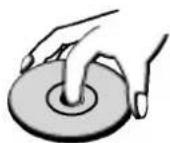
Do not touch the playback side of the disc. Hold the disc by the edges so that fingerprints do not get on the surface. Never stick paper or tape on the disc.

Storing Discs
After playing, store the disc in its case. Do not expose the disc to direct sunlight or sources of heat and never leave it in a parked car exposed to direct sunlight.
Cleaning Discs
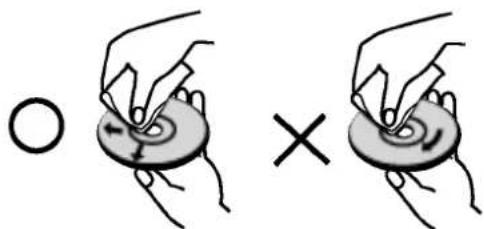
Fingerprints and dust on the disc can cause poor picture quality and sound distortion. Before playing, clean the disc with a clean cloth. Wipe the disc from the center out.
natural_image
Illustration of two hands holding a circular object with a cross symbol (no text or labels)Do not use strong solvents such as alcohol, benzine, thinner, commercially available cleaners, or anti-static spray intended for older vinyl records.
Moisture Condensation
Never operate this product immediately after moving it from a cold location to a warm location. Leave it for two or three hours without operating it. If you use this product in such a situation, it may damage discs and internal parts.
Recordable and Playable Discs

DVD-RW (Digital Video Disc - ReWritable):
• DVD-RW discs can be formatted for VR mode recording or Video mode recording.
- These Discs can be recorded on repeatedly. Recordings can be erased, then you can record again on the same Disc.
[VR mode]
• Recordings can be extensively edited
- Playable only on VR mode compatible players (after finalization)
[Video mode]
- Playable on regular DVD players (after finalization)
• Limited editing features

DVD-R (Digital Video Disc - Recordable)
• These Discs can be recorded only once. After you finalize a DVD-R, you cannot record on it or edit it.
• DVD-R discs can be only formatted to Video mode.
- Playable on regular DVD players (after finalization)
- Limited editing features

DVD-RAM (DVD - Random Access Memory)
• DVD-RAM discs can be formatted for VR mode recording.
- These Discs can be recorded on repeatedly. Recordings can be erased, then you can record again on the same Disc.
- Playable on DVD-RAM compatible players.
• Recordings can be extensively edited.
- Only DVD-RAM standard Version 2.0, 2.1 and 2.2 discs can be used in this unit.
- You cannot use the cartridge-type DVD-RAM disc in this unit.

DVD+RW (Digital Video Disc + ReWritable)
- These Discs can be recorded on repeatedly. Recordings can be erased, then you can record again on the same Disc.
- Playable on DVD+RW compatible players (automatically finalization)
- The edited contents are playable on DVD+RW compatible players only after finalization
• Recordings can be edited the title/chapter

DVD+R (Digital Video Disc + Recordable)
- These Discs can be recorded only once. After you finalize a DVD+R, you cannot record on it or edit it any more.
- Playable on DVD+R compatible players (after finalization)
- Any edited contents are not be compatible on DVD+R compatible players. (Hide, chapter combine, added chapter mark, etc.)
- Limited title/chapter editing features.

DVD+R DL (Digital Video Disc + Recordable; Double Layer)
- These Discs can be recorded only once. After you finalize a DVD+R DL, you cannot record on it or edit it any more.
- Storage space is nearly doubled with double layer DVD+R media, allowing consumers to record up to 8.5GB of video on a single DVD+R disc.
- Playable on DVD+R DL compatible players (after finalization)
- Any edited contents are not be compatible on DVD+R DL compatible players. (Hide, chapter combine, added chapter mark, etc.)
- Limited title/chapter editing features.
Recommended recordable DVD discs
| DVD-R | DVD+R | DVD-RW | DVD+RW | DVD+R(DL) | DVD-RAM |
| Mitsubishi (8x, 16x) | Mitsubishi (8x, 16x) | Mitsubishi (4x) | Mitsubishi (4x) | Mitsubishi (2.4x, 8x) | Fujifilm (2x) |
| That's (8x, 16x) | Ricoh (8x, 16x) | Verbatim (4x) | SONY (4x) | Maxell (2.4x) | Mitsubishi (3x) |
| Verbatim (8x) | Verbatim (8x) | JVC (4x) | Imation (4x) | - | Maxell (5x) |
| - | - | Victor (4x) | Maxell (4x) | - | - |
| - | - | Maxell (4x) | Ricoh (4x) | - | - |
Note: If a DVD-RW/DVD+RW discs is recorded using a personal computer or other DVD recorder, you cannot format the disc using this recorder. So if you want to use the disc on this recorder, you must format the disc using the original recorder.
playable Discs

DVD (8 cm / 12 cm disc)
Discs such as movies that can be purchased or rented

Video CD (VCD) (8 cm / 12 cm disc)
VIDEO CDs or CD-Rs/CD-RWs in VIDEO CD/Super VIDEO CD format

Audio CD (8 cm / 12 cm disc)
Music CDs or CD-Rs/CD-RWs in music CD format that can be purchased

CD-R/CD-RW (8 cm / 12 cm disc)
CD-R/CD-RW discs that contain audio titles, DivX, MP3, WMA, or JPEG files.
Notes:
- Depending on the conditions of the recording equipment or the CD-R/RW (or DVD±R/RW) disc itself, some CD-R/RW (or DVD±R/RW) discs cannot be played on the unit.
- Do not attach any seal or label to either side (the labeled side or the recorded side) of a disc.
- Do not use irregularly shaped CDs (e.g., heart-shaped or octagonal). Doing so may result in malfunctions.
- Depending on the recording software & the finalization, some recorded discs (CD-R/RW or DVD±R/RW) may not be playable.
- DVD-R/RW, DVD+R/RW and CD-R/RW discs recorded using a personal computer or a DVD or CD Recorder may not play if the disc is damaged or dirty, or if there is dirt or condensation on the Recorder's lens.
- If you record a disc using a personal computer, even if it is recorded in a compatible format, there are cases in which it may not play because of the settings of the application software used to create the disc. (Check with the software publisher for more detailed information.)
- This recorder requires discs and recordings to meet certain technical standards in order to achieve optimal playback quality. Pre-recorded DVDs are automatically set to these standards. There are many different types of recordable disc formats (including CD-R containing MP3 or WMA files) and these require certain pre-existing conditions (see above) to ensure compatible playback.
- Customers should note that permission is required in order to download MP3 / WMA files and music from the Internet. Our company has no right to grant such permission. Permission should always be sought from the copyright owner.
Regional Code
This unit has a regional code printed on the rear of the unit. This unit can play only DVD discs labeled same as the rear of the unit or "ALL".
Notes on Regional Codes
- Most DVD discs have a globe with one or more numbers in it clearly visible on the cover. This number must match your unit's regional code or the disc cannot play.
- If you try to play a DVD with a different regional code from the unit, the message "Incorrect region code. Can't play back" appears on the TV screen.
Card useable on this unit
- Compact Flash Card (CF)
• Micro Drive (MD), ST1 MD - Secure Digital Card (SD), Mini SD
- Multi Media Card (MMC), MMC Plus, RS MMC, MMC Mobile
• xD-Picture Card (xD)
• Memory Stick (MS), MS Duo, MS Pro, MS Pro Duo
• Compatible with: FAT 12, FAT 16, or FAT 32 - Only use the memory cards recommended above.
Regarding Write Protect
For cards that have a write protect switch, if the switch is on it will not be possible to write, erase or format the card.
Inserting/Removing the Memory Card

text_image
Slot 1 Insert CF, MD, or ST1 MD Slot 2 Insert SD, Mini SD, MMC, MMC Plus, RS MMC, MMC Mobile, xD, MS, MS Duo, MS-Pro, or MS Pro Duo cardInserting the card
Insert straight-in until it fits into place.
Removing the card
Slot 1: Withdraw the card carefully.
Slot 2: Press on the center of the card then withdraw the card carefully.
Notes:
- Keep the memory card out of reach of children. If swallowed, seek medical advice immediately.
• A memory card may not be used for this recorder - Do not extract the memory card in operating (play, copy, move, etc.).
Using Memory Card
- Insert a memory card.
- Press HOME on the remote control.
- Select [Music] or [Photo] option.
- Select [MEMORY CARD] then press ENTER. The Memory Card slot choice menu appears on the TV screen.
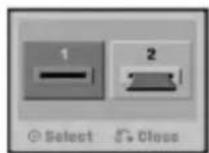
- Use ◀ / ▶ to select the desired Memory Card slot then press ENTER.
The menu appears on the TV screen.
Details for the options are on page 16.
Note:
If two memory cards are inserted and if you want to another memory card, press RETURN button the
Front Panel
text_image
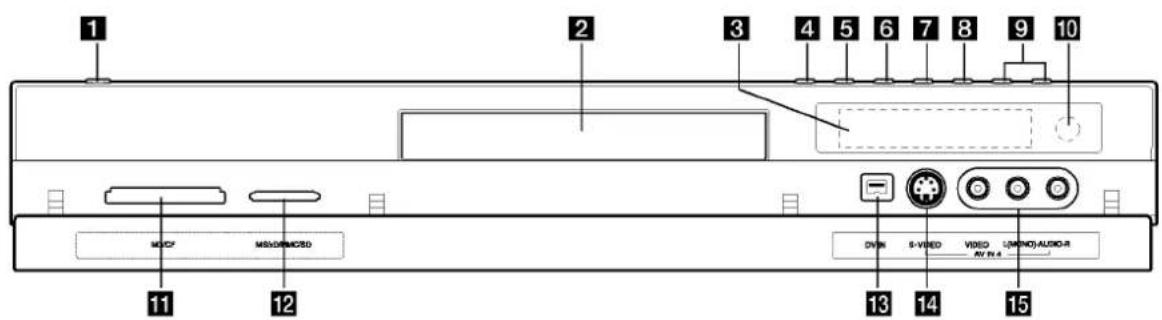
1 2 3 4 5 6 7 8 9 10 MOSY MOSOMICSD DVH S-VIRED VIDEO LUNING/AUDIO-R AV 4.4 11 12 13 14 151 POWER button
Switches the recorder ON or OFF.
2 Disc Tray
Insert a disc here.
3 Display window
Shows the current status of the recorder.
REC: The recorder is recording.
TV: Indicates when the recorder is in TV tuner mode.
⑨ : Indicates when the recorder is in timer recording or a timer recording is programmed.
88:88 : Shows the current status of the recorder (clock, program number, etc).
4 ▲ (OPEN/CLOSE)
Opens or closes the disc tray.
5 RESOLUTION
Sets the output resolution for HDMI and COMPONENT/ PROGRESSIVE SCAN VIDEO OUT jacks.
- HDMI: 1080i, 720p, 576p, 576i
- COMPONENT: 576p, 576i
6 ▶ / II (PLAY / PAUSE)
Starts playback. Pause playback or recording temporarily, press again to exit pause mode.
7 ■ (STOP)
Stops playback or recording.
8 ● (REC)
Starts recording. Press repeatedly to set the recording time.
9 PROG. (▼/▲)
Scans up or down through memorized channels.
10 Remote Sensor
Point the recorder remote control here.
11 MEMORY CARD Slot 1
Insert a memory card (CF/MD/ST1 MD).
12 MEMORY CARD Slot 2
Insert a memory card (SD/Mini SD/MMC/MMC Plus/RS MMC/MMC Mobile/xD/MS/MS Duo/MS-Pro/MS Pro Duo).
13 DV IN
Connect the DV output of a digital camcorder.
14 AV IN 4 (S-VIDEO IN)
Connect the S-Video output of an external source (TV/ Monitor, VCR, Camcorder, etc.).
15 AV IN 4 (VIDEO IN/AUDIO IN (Left/Right))
Connect the audio/video output of an external source (Audio system, TV/ Monitor, VCR, Camcorder, etc.).
Remote Control
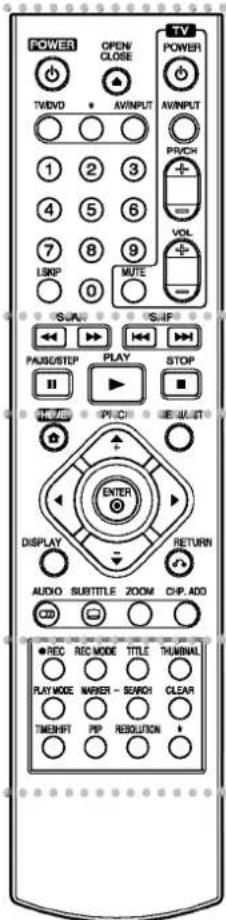
text_image
POWER TWDVD OPEN CLOSE AVINPUT 1 2 3 4 5 6 7 8 9 LSRP 0 MUTE SUAU SKIP PAUSE/STEP PLAY STOP TIME PRICE IE MULT ENTER DISPLAY RETURN AUDIO SUBTITLE ZOOM CHIP ADD CD ● REC REC MODE TITLE THUMBIAL PLAY MODE WARNER - SWITCH CLEAR TIMESHPT PIP RESOLUTION + TV POWER1
2
3
4
POWER: Switches the recorder ON or OFF.
OPEN/CLOSE (▲): Opens and closes the disc tray.
TV/DVD: To view channels selected by the recorder tuner or by the TV tuner.
AV/INPUT: Changes the input to use for recording (Tuner, AV1-4, or DV IN).
0-9 numerical buttons: Selects numbered options in a menu.
I.SKIP (INSTANT SKIP): Skips 30 seconds forward during playback.
TV Control Buttons: See page 48.
SCAN (◀◀ / ▶▶): Search backward or forward.
SKIP (I◄◄ / ►►I): Go to next or previous chapter or track.
PAUSE/STEP (III) : Pause playback or recording temporarily.
PLAY (▶): Starts playback.
STOP (■): Stops playback or recording.
3
HOME: Accesses or removes the HOME menu.
MENU/LIST: Accesses menu on a DVD disc. Switches between Title List-Original and Title List-Playlist menu.
◀ / ▶ / ▲ / ▼ (left/right/up/down): Selects an option in the menu.
ENTER (◎)
Acknowledges menu selection. PR/CH (+/-): Scans up or down through memorized channels.
DISPLAY: Accesses On-Screen Display.
RETURN (○)
Removes the menu.
AUDIO (∞): Selects an audio language or audio channel.
SUBTITLE (☐): Selects a subtitle language.
ZOOM: Enlarges DVD video image.
CHP. ADD: Inserts a chapter marker when playing/recording.
4
REC (●): Starts recording.
REC MODE: Selects the recording mode.
TITLE: Displays the disc's Title menu, if available.
THUMBNAIL: Selects a thumbnail picture.
PLAY MODE: Selects a play mode.
MARKER: Marks any point during playback.
SEARCH: Displays Marker Search menu.
CLEAR: Removes a mark on the Marker Search menu.
TIMESHIFT: To play the title being recorded and also currently being recorded appears as PIP.
PIP: Selects PIP function on or off.
RESOLUTION: Sets the output resolution for HDMI.
* button(s) is not available.
Remote Control Operation
Point the Remote Control at the remote sensor and press the buttons.
Caution
Do not mix old and new batteries. Never mix different types of batteries (standard, alkaline, etc.).
Remote Control Battery Installation
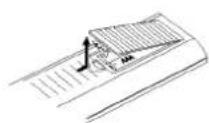
Remove the battery cover on the rear of the Remote Control, and insert two R03 (size AAA) batteries with + and - matched correctly.
Hookup and Settings
Rear Panel
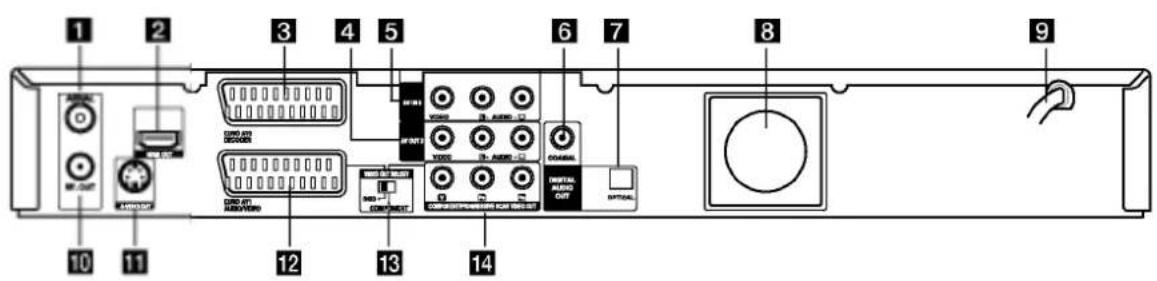
text_image
1 2 3 4 5 6 7 8 9 10 11 12 13 141 AERIAL Connect the aerial to this terminal.
2 HDMI Connector (Type A)
HDMI output providing a high quality interface for digital audio and video.
3 EURO AV 2 DECODER
Connect the audio/video output of an external source (Pay-TV decoder, Set Top Box, VCR, etc.).
4 AV OUT 3 (VIDEO / AUDIO OUT (Left/Right))
Connect to a TV with video/audio inputs.
5 AV IN 3 (VIDEO IN/AUDIO IN (Left/Right))
Connect the audio/video output of an external source (Audio system, TV/ Monitor, VCR, Camcorder, etc.).
6 COAXIAL (Digital audio out jack)
Connect to digital (coaxial) audio equipment.
7 OPTICAL (Digital audio out jack)
Connect to digital (optical) audio equipment.
8 Cooling fan
9 AC Power Cord
Plug into the power source.
10 RF. OUT
Passes the signal from the AERIAL to your TV/monitor
11 S-VIDEO OUT
Connect to a S-Video Input on TV.
12 EURO AV 1 AUDIO/VIDEO
Connect to a TV with SCART jack.
13 VIDEO OUT SELECT Switch
Select either COMPONENT or RGB signal of EURO AV1 AUDIO/VIDEO terminal depending on how you connect the recorder to the TV.
14 COMPONENT/PROGRESSIVE SCAN VIDEO OUT (Y Pb Pr)
Connect to a TV with Y Pb Pr inputs.
Connecting to the Aerial
Remove the aerial cable plug from your TV set and insert it into the aerial socket at the back of the recorder. Plug one end of the aerial cable into the TV socket on the recorder and the other end into the aerial input socket on your TV set.
RF coaxial connection
Connect the RF. OUT jack on the recorder to the aerial input jack on the TV using the 75-ohm Coaxial Cable supplied (R). The RF. OUT jack passes the signal through from the AERIAL jack.
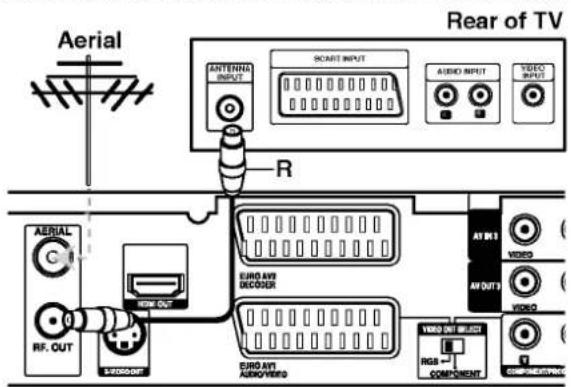
text_image
Aerial Rear of TV ANTENIAL INPUT SCART INPUT AUDIO INPUT VIDEO INPUT AERIAL C RF. CUT S/WRDOUT EURO AVI DECODER EURO AVI AUDIO/VERIO AV OUT VIDEO VIDEO COMPONENT RGB - COMPONENTRear of the recorder
Connections to Your TV
- Make one of the following connections, depending on the capabilities of your existing equipment.
- When using the COMPONENT/PROGRESSIVE SCAN VIDEO OUT jacks, set the VIDEO OUT SELECT switch to COMPONENT. When using the SCART jack, set the VIDEO OUT SELECT switch to RGB.
Tips
- Depending on your TV and other equipment you wish to connect, there are various ways you could connect the recorder. Use only one of the connections described below.
- Please refer to the manuals of your TV, VCR, Stereo System or other devices as necessary to make the best connections.
Caution
- Make sure the recorder is connected directly to the TV. Tune the TV to the correct video input channel.
- Do not connect the recorder's AUDIO OUT jack to the phono in jack (record deck) of your audio system.
- Do not connect your recorder via your VCR. The DVD image could be distorted by the copy protection system.
Rear of TV

text_image
S SCART INPUT COMPONENT VIDEO INPUT VIDEO INPUT AUDIO INPUT T C V A S Audio INPUT Audio OUT Audio API AUDIO/VIDEO Audio OUT Audio AIR Audio AIR Audio AIR Audio AIR Audio AIR Audio AIR Audio AIR Audio AIR Audio AIR Audio AIR Audio AIR Audio AIR Audio AIR Audio AIR Audio AIR Audio AIR Audio AIR Audio AIR Audio AIR Audio AIR Audio AIR Audio AIR Audio AIR Audio AIR Audio AIR Audio AIR Audio AIR Audio AIR Audio AIR Audio AIR Audio AIR Audio AIR Audio AIR Audio AIRSCART connection
Connect the EURO AV1 AUDIO/VIDEO scart jack on the recorder to the corresponding in jacks on the TV using the scart cable (T).
Video connection
Connect the VIDEO OUT jack on the recorder to the video in jack on the TV using the video cable (V).
Audio (Left/Right) Connection
Connect the left and right AUDIO OUT jacks of the recorder to the audio left and right IN jacks on the TV using the audio cables (A). Do not connect the recorder's AUDIO OUT jack to the phono in jack (record deck) of your audio system.
S-Video connection
Connect the S-VIDEO OUT jack on the recorder to the S-Video in jack on the TV using the S-Video cable (S).
Component Video connection
Connect the COMPONENT/PROGRESSIVE SCAN VIDEO OUT jacks on the recorder to the corresponding input jacks on the TV using an Y Pb Pr cable (C).
If your television is a high-definition or "digital ready" television, you may take advantage of the recorder's progressive scan output for the highest video resolution possible. If your TV does not accept the Progressive Scan format, the picture will appear scrambled if you try Progressive Scan on the recorder.
- Set the resolution to 576p using RESOLUTION button for progressive signal.
Note:
Progressive scan does not work with the analog video connections (yellow VIDEO OUT jack) or S-VIDEO connection.
Caution
If the resolution is set to 720p or 1080i, the VIDEO OUT, S-VIDEO OUT and COMPONENT VIDEO OUT connections are not available.
HDMI connection
If you have a HDMI TV or monitor, you can connect it to this recorder using a HDMI cable.
- Connect the HDMI jack on the recorder to the HDMI jack on a HDMI compatible TV or monitor (H).
- Set the TV's source to HDMI (refer to TV's Owner's manual).
Notes:
- If your TV is NOT capable of handling 96 kHz sampling frequency, set the [Sampling Freq.] option to [48 kHz] on the setup menu (See page 20). When this choice is made, this unit will automatically convert any 96 kHz signals to 48 kHz so your system can decode them.
- If your TV is not equipped with Dolby Digital and MPEG decoder, set the [Dolby Digital] and [MPEG] options to [PCM] on the setup menu (See page 20).
- If your TV is not equipped with DTS decoder, set the [DTS] options to [OFF] on the setup menu (See page 20). To enjoy DTS multi channel surround, you must connect this recorder to a DTS compatible receiver via one of this recorder's digital audio outputs.
- The arrow on the cable connector body should face up for correct alignment with the connector on the recorder.

(Type A)
- If there is noise or lines on the screen, please check the HDMI cable.
Tip :
When you use HDMI connection, you can change the resolution (576i, 576p, 720p, or 1080i) for the HDMI output using RESOLUTION button.
Caution
Changing the resolution when the recorder is connected with HDMI connector may result in malfunctions. To solve the problem, turn off the recorder and then turn it on again.

text_image
HDMI compatible TV H VDD 1.0 Audi 1.0 Audi 2.0 Audi 3.0 Audi 4.0 Audi 5.0 Audi 6.0 Audi 7.0 Audi 8.0 Audi 9.0 Audi 10.0 Audi 11.0 Audi 12.0 Audi 13.0 Audi 14.0 Audi 15.0 Audi 16.0 Audi 17.0 Audi 18.0 Audi 19.0 Audi 20.0 Audi 21.0 Audi 22.0 Audi 23.0 Audi 24.0 Audi 25.0 Audi 26.0 Audi 27.0 Audi 28.0 Audi 29.0 Audi 30.0 Audi 31.0 Audi 32.0 Audi 33.0 Audi 34.0 Audi 35.0 Audi 36.0 Audi 37.0 Audi 38.0 Audi 39.0 Audi 40.0 Audi 41.0 Audi 42.0 Audi 43.0 Audi 44.0 Audi 45.0 Audi 46.0 Audi 47.0 Audi 48.0 Audi 49.0 Audi 50.0 Audi 51.0 Audi 52.0 Audi 53.0 Audi 54.0 Audi 55.0 Audi 56.0 Audi 57.0 Audi 58.0 Audi 59.0 Audi 60.0 Audi 61.0 Audi 62.0 Audi 63.0 Audi 64.0 Audi 65.0 Audi 66.0 Audi 67.0 Audi 68.0 Audi 69.0 Audi 70.0 Audi 71.0 Audi 72.0 Audi 73.0 Audi 74.0 Audi 75.0 Audi 76.0 Audi 77.0 Audi 78.0 Audi 79.0 Audi 80.0 Audi 81.0 Audi 82.0 Audi 83.0 Audi 84.0 Audi 85.0 Audi 86.0 Audi 87.0 Audi 88.0 Audi 89.0 Audi 90.0 Audi 91.0 Audi 92.0 Audi 93.0 Audi 94.0 Audi 95.0 Audi 96.0 Audi 97.0 Audi 98.0 Audi 99.0 Audi 100.0Rear of the recorder
About HDMI
HDMI (High Definition Multimedia Interface) supports both video and audio on a single digital connection for use with DVD Players, Set-Top Boxes, and other AV devices.
HDMI was developed to provide the technologies of HDCP (High Definition Contents Protection). HDCP is used to protect digital content transmitted and received.
HDMI has the capability to support standard, enhanced, or high-definition video plus standard to multi-channel surround-sound audio, HDMI features include uncompressed digital video, a bandwidth of up to 5 gigabytes per second, one connector (instead of several cables and connectors), and communication between the AV source and AV devices such as DTVs.
HDMI, the HDMI logo and High-Definition Multimedia Interface are trademarks or registered trademarks of HDMI licensing LLC.
Additional Information for HDMI
- When you connect a HDMI or DVI compatible device make sure of the followings:
- Try switching off the HDMI/DVI device and this recorder. Next, switch on the HDMI/DVI device and leave it for around 30 seconds, then switch on this recorder.
- The connected device's video input is set correctly for this unit.
- The connected device is compatible with 720(1440)x576i, 720x576p, 1280x720p, or 1920x1080i video input.
- Not all HDCP-compatible DVI devices will work with this recorder.
- The picture will not be displayed properly with non-HDCP device.
Connecting to an Amplifier
Connecting to an amplifier equipped with two channel analog stereo or Dolby Pro Logic II/Pro Logic
Connect the Left and Right AUDIO OUT jacks on the recorder to the audio left and right in jacks on your amplifier, receiver, or stereo system, using the audio cables (A).
Connecting to an amplifier equipped with two channel digital stereo (PCM) or to an Audio/Video receiver equipped with a multi-channel decoder (Dolby Digital™, MPEG 2, or DTS)
-
Connect one of the recorder's DIGITAL AUDIO OUT jacks (OPTICAL O or COAXIAL X) to the corresponding in jack on your amplifier. Use an optional digital (optical O or coaxial X) audio cable.
-
You will need to activate the recorder's digital output. (See "Audio Settings" on page 20).
Digital Multi-channel sound
A digital multi-channel connection provides the best sound quality. For this you need a multi-channel Audio/Video receiver that supports one or more of the audio formats supported by your recorder (MPEG 2, Dolby Digital and DTS). Check the receiver manual and the logos on the front of the receiver.
Caution:
Due to the DTS Licensing agreement, the digital output will be in DTS digital out when DTS audio stream is selected.
Notes:
- If the audio format of the digital output does not match the capabilities of your receiver, the receiver will produce a strong, distorted sound or no sound at all.
– Six Channel Digital Surround Sound via digital connection can only be obtained if your receiver is equipped with a Digital Multi-channel decoder. - To see the audio format of the current DVD in the on-screen display, press AUDIO.
- This recorder does not perform internal (2 channel) decoding of a DTS sound track. To enjoy DTS multi channel surround, you must connect this recorder to a DTS compatible receiver via one of this recorder's digital audio outputs.
Rear of the recorder

text_image
AV INS VIDEO IN AUDIO AV OUT VIDEO IN AUDIO Catal DIGITAL AUDIO OUT OPTICAL COMPONENT A X O AUDIO INPUT COAXIAL DIGITAL INPUT OPTICAL DIGITAL INPUTAmplifier (Receiver)
Manufactured under license from Dolby Laboratories. "Dolby", "Pro Logic", and the double-D symbol are trademarks of Dolby Laboratories.
"DTS" and "DTS Digital Out" are trademarks of Digital Theater Systems, Inc.
Accessory Audio/Video (A/V) Connections
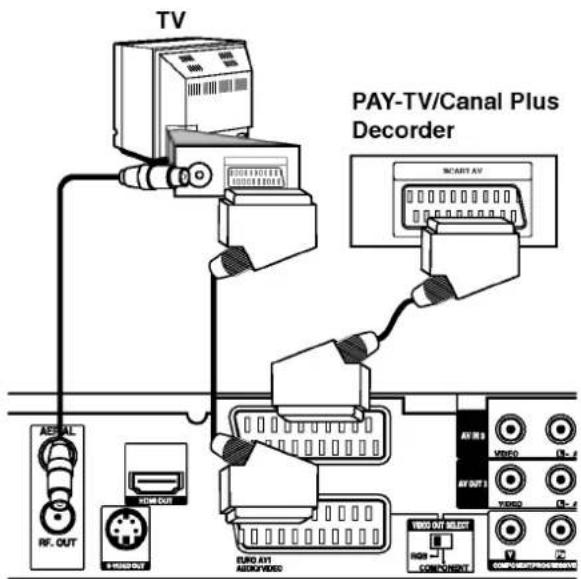
Connecting a PAY-TV/Canal Plus Decoder
You can watch or record PAY-TV/Canal Plus programmes if you connect a decoder (not supplied) to the recorder. Disconnect the recorder's mains lead from the mains when connecting the decoder.
To watch or record PAY-TV/Canal Plus programmes, set [AV2 Connection] option to [Decoder] (see page 19) and set the program's [Decoder On/Off] option to [On] on the Setup menu (page 18).
Tip:
You do not need to turn on the recorder to view the signals from the connected tuner on your TV.
Note:
If you disconnect the recorder's mains lead, you will not be able to view the signals from the connected decoder.
text_image
TV PAY-TV/Canal Plus Decoder MACART AV AV OUT VIDEO AV OUT VIDEO AV OUT VIDEO AV OUT VIDEO AV OUT VIDEO AV OUT VIDEO AV OUT VIDEO AV OUT VIDEO AV OUTRear of the recorder
Connecting to the EURO AV2 DECODER jack
Connect a VCR or similar recording device to the EURO AV2 DECODER jack of this recorder.
To watch or record the source from EURO AV2 DECODER jack, set [AV2 Connection] option to [Other Device] (see page 19) and set [AV2 Record] option to [Auto], [CVBS] or [RGB] as required (see page 21).

text_image
TV VCR, Cable Box, or Satellite Tuner, etc. AERIAL RF. OUT MOSOOUT BUNO AVI AUDIOVIDEO AVIR 1 VIDEO AV OUT1 VIDEO AVI 2 COMPONENT COMERCIAL/COMMERCIALRear of the recorder
Tip:
You do not need to turn on the recorder to view the signals from the connected tuner on your TV.
Notes:
- Pictures containing copy protection signals that prohibit any copying cannot be recorded.
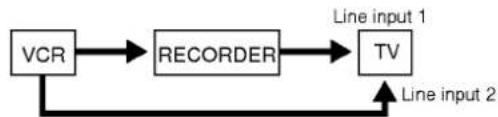
- If you pass the recorder signals via the VCR, you may not receive a clear image on your TV screen. Be sure to connect your VCR to the recorder and your TV in the order shown below. To watch video tapes, watch the tapes through a second line input on your TV.
flowchart
graph LR
    A["VCR"] --> B["RECORDER"]
    B --> C["TV"]
    D["Line input 2"] --> C
    C --> E["Line input 1"]
- When you record to a VCR from this recorder, do not switch the input source to TV by pressing the TV/DVD button on the remote.
- If you are using a B Sky B tuner, be sure to connect the tuner's VCR SCART jack to the EURO AV2 DECODER jack.
- If you disconnect the recorder's mains lead, you will not be able to view the signals from the connected VCR or tuner.
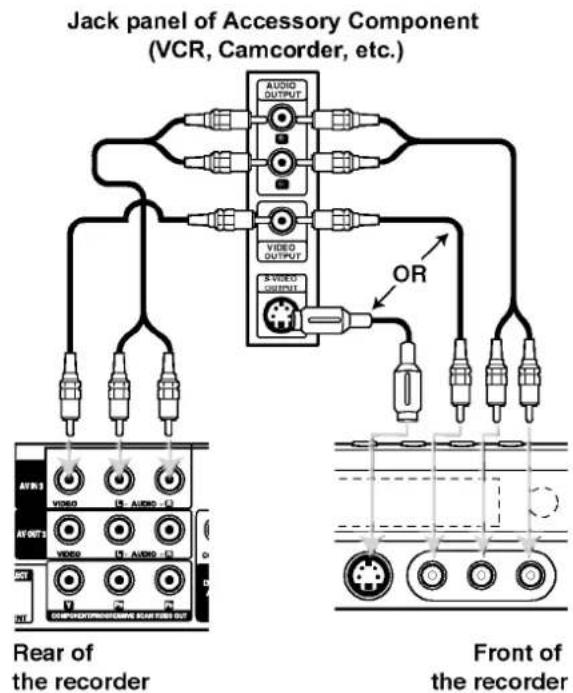
Connecting to the AV IN 3 or AV IN 4 Jacks
Connect the input jacks (AV IN 3, AV IN 4) on the recorder to the audio/video out jacks on your accessory component, using audio/video cables.
Note:
If you use the S-VIDEO IN jack on the front panel, the VIDEO IN jack on the front panel is not available.
text_image
Jack panel of Accessory Component (VCR, Camcorder, etc.) AUDIO OUTPUT VIDEO OUTPUT & VIDEO OUTPUT OR AVR3 VIDEO AV OUT1 VIDEO AV OUT2 COMPOKTIOM/CMCER SCAR RED OUT Rear of the recorder Front of the recorderConnecting a Digital Camcorder
Using the front panel DV IN jack, it is possible to connect a DV digital camcorder and digitally transfer DV tapes to DVD.
Use a DV cable (not supplied) to connect the DV in/out jack of your DV camcorder to the front panel DV IN jack of this recorder.
Note:
This jack is for connection to DV digital camcorder only. It is not compatible with digital satellite tuners or D-VHS video decks.

text_image
DV Digital Camcorder DV IN/OUT Front of the recorderAuto Set Up
After the POWER is pressed for the first time to turn on the unit or resetting the unit, the Initial Setup Wizard function sets the language, clock and tuner channels automatically.
- Select a language for the Setup menu and on-screen display. Use ▲ / ▼ to select a language then press ENTER.

- Please check your antenna connections. Press ENTER to move next step.

- Use ▲ / ▼ to select a country and press ▶ button then press ENTER while [Start] option is selected. The tuner will automatically cycle through all available channels in the area and place them in the tuner's memory.

- Use ▲ / ▼ to select the Clock Set option then press ENTER.
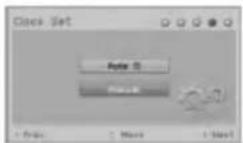
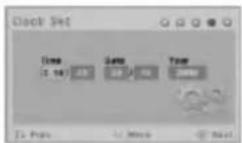
- [Auto]: When Channel auto search is completed the actual Time and Date are also set automatically. (See "Auto Clock Set" on page 16.)
- [Manual]: Enter the necessary information for date and time.
◀ / ▶ (left/right): Moves the cursor to the previous or next column.
▲ / ▼ (up/down): Changes the setting at the current cursor position.
Press ENTER to confirm your setting.
- Press ENTER while [Close] is highlighted to finish setup.

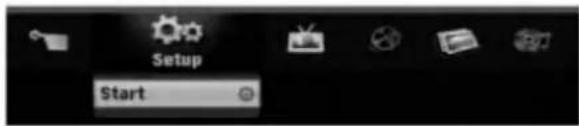
Using the Home Menu
From the Home Menu screen you can access all the Media for playback and recording of the recorder.
- Press HOME to display the Home Menu screen. The unit will be in TV viewing mode always when the Home menu appears.
- Use ◀/▶ buttons to select a main option you want. Sub options appears.
- Use ▲ / ▼ and ENTER buttons to select the sub option you want.
text_image
Setup Start- To exit the HOME menu, press HOME.
Setup
- Start: Displays Setup menu.
TV
• Auto Ch. Scan: See page 17.
• PR Edit: See page 18.
• Timer Record: See page 36.
Movie
• DISC:
- Displays Title List menu for recordable disc (page 39)
- Displays Movie List menu for DivX disc. (page 29)
- Plays back Video CD or DVD-Video disc (page 25-28).
Photo (See page 31-32)
• DISC: Displays Photo List menu for disc.
- MEMORY CARD: Displays memory card choice menu. (See page 7)
Music (See page 30)
• DISC: Displays Music List menu for disc.
- MEMORY CARD: Displays memory card choice menu. (See page 7)
Easy Menu
- Disc Manager: Displays the Disc Settings menu. (See page 22-23)
- Rec. Mode: Displays the menu to select the record mode. (See page 21)
- DV Input: Set the recorder to the DV input mode.
Initial Settings
In this menu system, there are several ways to customize the settings provided. Most menus consist of three levels to set up the options, but some require greater depth for the variety of settings.
General Operation
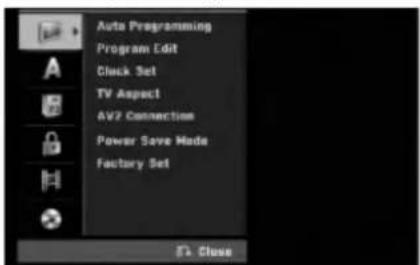
- Press HOME and select [Setup] option.
- Select [Start] option then press ENTER. The Setup menu appears.
text_image
Auto Programming Program Edit Clock Set TV Aspect AV2 Connection Power Save Mode Factory Set FX Close-
Use ▲ / ▼ to select the desired option.
-
While the desired item is selected, press ▶ to move to the second level.
-
Use ▲ / ▼ to select the second desired option.
-
Press ▶ to move to the third level.
-
Use ▲ / ▼ to select the desired setting then press ENTER to confirm your selection. Some items require additional steps.
-
Press RETURN (💡) repeatedly to exit the Setup menu.
Note:
Press ◀ to go back to the previous level.
General Settings
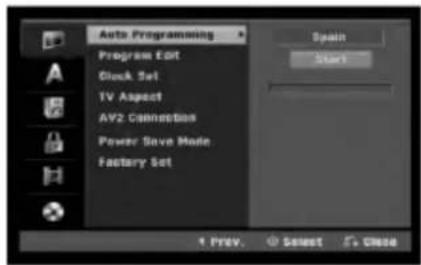
Auto Programming
This recorder is equipped with a frequency synthesized tuner capable of receiving up to 88 TV channels.
Preparation:
- Connect the recorder to the desired type of aerial as shown in Connecting to the Aerial on page 10.
text_image
Auto Programming Program Edit Block Set TV Aspect AV2 Connection Power Save Mode Factory Set Spain Start 1 Prev. Select 5. Close- Select the [Auto Programming] option.
- Press ▶ to move to the third level. [Country] option is highlighted.
- Use ▲ / ▼ to select a country then press ▶. [Start] icon is highlighted. If your country is not listed, select [Others]
- Press ENTER to begin the channel search. The tuner will automatically cycle through all available channels in the area and place them in the tuner's memory.
Program Edit
You can edit a channel manually (add, delete, name, move, etc.).
- Select [Program Edit] option then press ▶
- Press ENTER while [Edit] is selected. The Program List menu appears.

text_image
PR-01 Program Edit Station Release Move Delete Decoder 8n/DH N/CAM Auto/01 PR C01 +49 ARD 02 C02 0 ARD 03 C09 0 BGC1 04 C11 0 BGC1 05 C18 +49 ARD 06 C28 0 ARD 07 C46 0 ARD 08 C50 0 BGC1 09 C06 0 10 C07 +49 11 C23 0- Use ▲ / ▼ to select a PR number then press ENTER.
-
Use ▲ / ▼ to select the program option then press ENTER.
-
[Program Edit] Sets the channel manually. See "Program Edit" on the bottom.
- [Station Rename] Changes the station name. The display for entering characters appears. To enter characters, see page 43. Names can be up to 5 characters long.
- [Move] Sorts the programme positions on the Program List. Press ▲ / ▼ to move the selected programme position to a new location.
- [Delete] Disables a programme position you do not need.
- [Decoder On/Off] Sets the channels for the decoder. You need this setting to watch or record PAY-TV/Canal Plus programmes. Press ENTER so [Decoder] appears on the display. Press ENTER again to turn off the setting.
-
[NICAM Auto/off] Sets the channels for the NICAM broadcast. Normally, [NICAM] is lit on the display. If the sound from NICAM broadcast is not clear, press ENTER so [NICAM] disappears.
-
Press RETURN (💡) repeatedly to exit Program List menu.
Program Edit
You can perform a search to select and store TV channels manually.
When you select [Program Edit] in step 4 above, the display for setting channels appears.
- Use ◀ / ▶ to select the item and press ▲ / ▼ to change the setting.

• [PR] indicates the selected programme position.
- [Seek] Searches for a channel automatically. Searching stops when the recorder tunes in a channel.
• [Ch.] Changes the channel number.
- [MFT] Fine tunes the channel to obtain a clearer picture.
- Choose OK then press ENTER to confirm the setting and returns to the Program List menu.
AV1 Decoder
Sets the EURO AV1 AUDIO/VIDEO jack for inputting encoded video signals.
- Press AV/INPUT while the [Decoder On/Off] option is highlighted.
-
Press ENTER so [Decoder] appears on the display. Press ENTER again to turn off the setting.
-
Off: Inputs the signals from the EURO AV1 AUDIO/VIDEO jack. Normally select this.
- On: The encoded video signal input from the EURO AV1 AUDIO/VIDEO jack is output to the EURO AV2 DECODER jack for decoding. The decoded signal is then input back through the EURO AV2 DECODER jack so you can record or view PAY-TV/Canal Plus programmes
Auto Clock Set
When Channel auto search is completed the actual Time and Date are also set automatically. If the time in the recorder display is not correct, the clock must be set manually.
- Select [Clock set] option then press ▶.
- Use ▲ / ▼ to select [Auto] option then press ENTER.
Note:
There are cases where the TV station does not send, or sends wrong date and/or time information and the recorder sets the incorrect time.
If this happens, we recommend that you set the clock manually.
Manual Clock Set
- Select [Clock set] option then press ▶.
- Use ▲ / ▼ to select [Manual] option then press ENTER.
- Enter the necessary information for date and time. ◀ / ▶ (left/right): Moves the cursor to the previous or next column.
▲ / ▼ (up/down): Changes the setting at the current cursor position.
- Press ENTER to confirm your setting.
General Settings (Continued)
TV Aspect
Selects the aspect ratio of the connected TV (4:3 standard or wide).
- [4:3 Letter Box] Select this when connecting to a 4:3 screen TV. Displays a wide picture with bands on the upper and lower portions of the screen.
- [4:3 Pan Scan] Select this when connecting to a 4:3 screen TV. Automatically displays a wide picture on the entire screen and cuts off the portions that do not fit.
• [16:9] Select this when connecting to a wide-screen TV or TV with a wide mode function.
AV2 Connection
You can connect a decoder or other device to the EURO AV2 DECODER socket on the back.
- [Decoder] Select [Decoder] if you connect the recorder's EURO AV2 DECODER jack to a PAY-TV or Canal Plus decoder.
- [Other Device] Select [Other Device] if you connect the recorder's EURO AV2 DECODER jack to a VCR or similar recording device.
Power Save Mode
You can set up the unit into an economic power save mode. Nothing is displayed in the display window when the unit is turned off.
• [OFF] Power Save Mode is not active.
• [ON] Power Save Mode is active.
Notes:
- The encoded television signals (CANAL+ or PREMIERE) are not decoded in the Power Save Mode.
- The Power Save Mode is not available in the standby mode for the timer recording and when power off of the unit after receiving the encoded television signals (CANAL+ or PREMIERE).
Factory Set
If you need to, you can reset the Recorder to all its factory settings. Select "Set" icon then press ENTER and auto setup menu will appear, see page 16.
Note:
Some options can not be reset. (Rating, Password, and Area Code)
Language Settings

text_image
Display Menu Diss Menu Disc Audio Disc Subtotal Nederisms ✓ English Français Deutsch EAugueski Italoue Portugues Españat Svenska 4 Prev. Select 5 CloseDisplay Menu
Select a language for the Setup menu and on-screen display.
Disc Menu/Audio/Subtitle
- [Original]Refers to the original language in which the disc was recorded.
- [Others] To select another language, press number buttons then ENTER to enter the corresponding 4-digit number according to the language code list in the reference chapter (see page 47). If you make a mistake while entering number, press CLEAR repeatedly to delete numbers one by one then correct it.
• Off : Turn off Subtitle.
Audio Settings
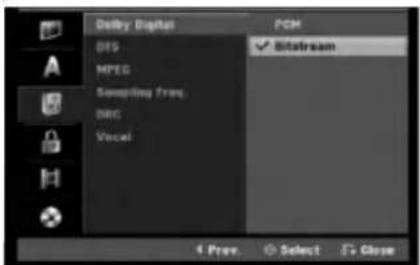
Each DVD disc has a variety of audio output options. Set the recorder's Audio Output according to the type of audio system you use.
text_image
Delay Digital DTS MPEG Sampling frame. DRG Vocal PCM ✓ Bitstream 4 Prev. Select End CloseDolby Digital / DTS / MPEG
- [Bitstream]: Select "Bitstream" if you connect the recorder's DIGITAL AUDIO OUT jack to an amplifier or other equipment with a Dolby Digital, DTS or MPEG decoder.
- [PCM] (for Dolby Digital / MPEG): Select when connected to a two-channel digital stereo amplifier. DVDs encoded in Dolby Digital or MPEG will be automatically downmixed to two-channel PCM audio.
- [Off] (for DTS): If you select "Off", the DTS signal is not output through the DIGITAL AUDIO OUT jack.
Sampling Frequency
If your receiver or amplifier is NOT capable of handling 96 kHz signals, select [48 kHz]. When this choice is made, this unit will automatically convert any 96 kHz signals to 48 kHz so your system can decode them.
If your receiver or amplifier is capable of handling 96 kHz signals, select [96 kHz]. When this choice is made, this unit will pass each type of signal through without any further processing.
DRC (Dynamic Range Control)
With the DVD format, you can hear a program's soundtrack in the most accurate and realistic presentation possible, thanks to digital audio technology. However, you may wish to compress the dynamic range of the audio output (the difference between the loudest sounds and the quietest ones). Then, you may listen to a movie at a lower volume without losing clarity of sound. Set DRC to [ON] for this effect.
Vocal
Set Vocal to [ON] only when a multi-channel karaoke DVD is playing. The karaoke channels on the disc will mix into normal stereo sound.
Lock (Parental Control) Settings
text_image
Rating Set Password Area Code No Limit 8CAMS 7 6 5 4 3 2 10 X 10x10 Prev. Select Yes CloseRating
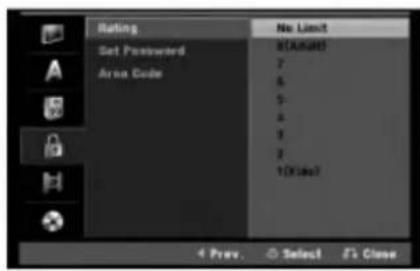
Blocks playback of rated DVDs based on their content. Not all discs are rated.
- Select [Rating] option then press ▶.
-
To access the Rating, Password and Area Code features, you must input the 4-digit security code you created. If you have not yet entered a security code you are prompted to do so. Input a 4-digit code. Enter it again to verify. If you make a mistake while entering number, press CLEAR repeatedly to delete numbers one by one then correct it.
-
Select a rating using the ▲ / ▼ buttons.
[1] - [8]: Rating one (1) has the most restrictions and rating eight (8) is the least restrictive.
[No Limit]: If you select [No Limit], parental control is not active and the disc plays in full.
- Press ENTER to confirm your rating selection.
Note:
If you set a rating for the recorder, all disc scenes with the same rating or lower are played. Higher rated scenes are not played unless an alternate scene is available on the disc. The alternative must have the same rating or a lower one. If no suitable alternative is found, playback stops. You must enter the 4-digit password or change the rating level in order to play the disc.
Lock (Parental Control) Settings (Continues)
Set Password
- Select [Set Password] option then press ▶.
- Follow step 2 as shown "Rating" on page 20. To change the password, select the [Change], press ENTER and input the new 4-digit code. Input it again to verify. To delete the password, select [Delete] then press ENTER.
If you forget your 4-digit code
If you forget your password, to clear the current password, follow the procedure below.
- Display Setup menu then select an 1 level icon.
- Use the Number buttons to enter the 6-digit number "210499".
- Select [OK] then press ENTER. The 4-digit password is cleared. Enter a new code.
Area Code
Enter the code of an area whose standards were used to rate the DVD video disc, referring to the list (See "Area Codes", page 47.).
- Select [Area Code] option then press ▶.
- Follow step 2 as shown "Rating" on page 20.
- Select the first character using the ▲ / ▼ buttons.
- Shift the cursor using ▶ buttons and select the second character using ▲ / ▼ buttons.
- Press ENTER to confirm your area code selection.
Recording Settings

text_image
Disc Record Mode SP DV Record Audio AV2 Recording Auto Chapter SP LP EP 4 Prev. Select CloseDisc Record Mode
You can set the picture quality for recording; XP (High Quality), SP (Standard Quality), LP (Low Quality), EP (Extend Quality).
DV Recording Audio
You need to set this if you have a camcorder using 32kHz/12-bit sound connected to the front panel DV IN jack.
Some digital camcorders have two stereo tracks for audio. One is recorded at the time of shooting; the other is for overdubbing after shooting.
On the Audio 1 setting, the sound that was recorded while shooting is used.
On the Audio 2 setting, the overdubbed sound is used.
AV2 Recording
You can select the type of the signal when recording video input signal from the device connected to the EURO AV2 DECODER socket.
[Auto] The video input signal will automatically follow the video signal received.
[CVBS] Only for recording CVBS input signal.
[RGB] Only for recording RGB input signal.
Auto Chapter
When recording in Video mode, chapter markers are put in specified setting. You can change this interval to 5 minutes or 10 minutes. If you select [None], switch off automatic chapter marking altogether with the [None] setting.
Disc Settings
Initialize
If you load a completely blank disc, the recorder will initialize the disc.
DVD-R: The recorder initialize the disc to Video mode. The recording mode will always be Video mode.
DVD-RW/DVD+RW/DVD+R (DL)/DVD-RAM: The Initialize menu will appears. Select [OK] then press ENTER. DVD-RW disc is initialized to Video mode.
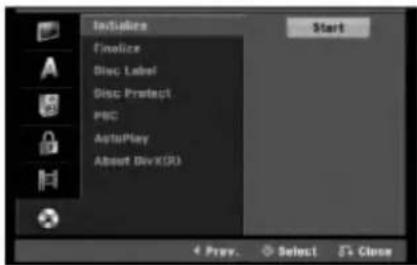
Also, you can reformat the DVD-RW/DVD+RW/DVD-RAM from the Setup menu as below.
text_image
Initiate Finishice Disc Label Disc Protect PSC AutoPlay About DevX(R) Start + Prey. Select St's Close- Select [Initialize] option then press ▶.
- Press ENTER while [Start] is selected. Format Disc menu appears.
- Use ◀ / ▶ to select a desired mode (VR Mode or Video Mode) then press ENTER. Confirm message will appear. For DVD+RWs, go to step 4.
- Use ◀ / ▶ to select [OK] then press ENTER. It takes a few moments to initialize the disc.
Caution
If you want to change the disc format, everything recorded on the disc will be erased.
Finalize
Finalizing 'fixes' the recordings in place so that the disc can be played on a regular DVD player or computer equipped with a suitable DVD-ROM drive. Finalizing a Video mode disc creates a menu screen for navigating the disc. This is accessed by pressing MENU/LIST or TITLE.
Caution
Once you have finalized a DVD-R and DVD+R disc, you cannot edit or record anything else on that disc except DVD+RW. However, you can record and edit a DVD-RW disc by choosing [Unfinalize] option.

text_image
Initialize Finalize Disc: Label Disc: Protect PBC AutoPlay About DevXDR Finalize 4 Prey Select & Close- Select [Finalize] option then press ▶.
- Press ENTER while [Finalize] is selected. Finalize menu appears.
- Select [OK] then press ENTER. The recorder starts finalizing the disc.
Note:
- How long finalization takes depends on the type of disc, how much is recorded on the disc, and the number of titles on the disc.
- DVD+R DL disc can take up to 30 minutes to finalize.
Tips
- If you load a DVD-RW that has already been finalized, you can 'Unfinalize' it by choosing Unfinalize from the Finalize menu. After doing this, you can edit and re-record onto the disc.
- You cannot unfinalize a DVD-R and DVD+R (DL) disc.
- If [Disc Protect] option is set to [ON], the finalize is not available. To finalize, set [Disc Protect] option to [OFF].
Disc Settings (Continued)
Disc Label
Use this to enter a name for the disc. This name appears when you load the disc and when you display disc information on-screen.
• The disc name can be up to 32 characters long.
- For discs formatted on a different recorder, you will see only a limited character set.
-
Select [Disc Label] option then press ▶.
-
Press ENTER while [Edit] is selected. Keyboard menu appears.
To enter characters, see page 43.
Disc Protect
When recording in DVD-RAM / DVD+RW / +R disc or VR mode formatted DVD-RW disc, set to [ON] to prevent accidental recording, editing or deleting of the disc loaded. If you need to unlock the disc to make edits, select [OFF].
PBC
PBC stands for Playback Control and refers to special menus and navigation features that are available on some Video CDs.
- [ON] Video CDs are played according to the PBC, if available.
• [OFF] Video CDs are played the same way as Audio CDs.
Auto Play
You can set up the unit so a DVD disc automatically starts playing whenever the DVD is inserted. If Auto Play mode is set to On, this unit will search for title that has the longest playback time and then play back the title automatically.
Note:
The Auto Play function may not work for some DVDs.
DivX Registration Code DivX
We provide you the DivX® VOD (Video On Demand) registration code that allows you to rent and purchase videos using the DivX® VOD service. For more information, visit www.divx.com/vod.
- Select [About DivX (R)] option then press ▶
- Press ENTER while [View] is selected and the registration code will appear.
- Use the registration code to purchase or rent the videos from Divx® VOD service at www.divx.com/vod. Follow the instructions and download the video onto a disc for playback on this unit.
Note:
All the downloaded videos from DivX® VOD can only be played back on this unit.
General Explanation of On-Screen Display
This manual gives basic instructions for operating the recorder. Some DVDs require specific operation or allow only limited operation during playback. When this occurs, the symbol ☑ appears on the TV screen, indicating that the operation is not permitted by the recorder or is not available on the disc.
Displaying Information While Watching TV
During viewing the TV, press DISPLAY to display/remove the information displayed on-screen.
Indicates channel number, station name, and audio signal (STEREO, MONO) received by the tuner.
Indicates the record mode, free space, and elapsed time progress bar.
Indicates disc name and format.

text_image
DVD-VR DVD-VIR WIRE SP OH O&M Free PR 05 MONO ARO DVD MONO 06/04/2006 4:25Indicates current audio channel.
Indicates current date and time.
Displaying Disc Information on-screen
You can display various information about the disc loaded on-screen.
- Press DISPLAY once to show current status.

text_image
Title : 1/17 Chapter : 1/21 0:00:15 / 2:04:06 DVD- Press DISPLAY once again to show various playback information.
The items displayed differ depending on the disc type or playing status.

text_image
DVD 1/17 1/21 0:00:21 OFF 1/1 NORMAL TITLE Wave 0 Tapset Letter- You can select an item by pressing ▲ / ▼ and change or select the setting by pressing ◀ / ▶. For details about each item, see the pages in parentheses.
• [Title]: Current title (or track) number/total number of titles (or tracks) (page 27)
• [Chapter]: Current chapter number/total number of chapters (page 25)
• [Time]: Elapsed playing time (page 27)
• [Audio]: Selected audio language (DVD VIDEO only) or audio channel (page 26)
• [Subtitle]: Selected subtitle (page 26)
• [Angle]: Selected angle/total number of angles (page 27)
• [Sound]: Selected sound mode (page 28)
Note:
If no button is pressed for 10 seconds, the on-screen display disappears.
Playback
General Playback Features
- Load your chosen disc in the tray, with the playback side down.
- Starts playback using HOME menu (see page 16).
- To stop the playback, press STOP (■). The unit records the stopped point, depending on the disc. "■" appears on the screen briefly. Press PLAY (▶) to resume playback (from the scene point). If you press STOP (■) again or unload the disc ("■" appears on the screen.), the unit will clear the stopped point.
- Press OPEN/CLOSE (▲) to remove the disc. Press OPEN/CLOSE (▲) to close disc tray or press POWER (○), the disc tray closes automatically and unit turns off.
Note:
If Parental Control is set and the disc is not within the Rating settings (not authorized), the 4-digit code must be entered and/or the disc must be authorized (see "Rating", on page 20).
| Buttons | Operations | Discs | ||
| OPEN / CLOSE (▲) | Opens or closes the disc tray. | All Discs | ||
| PAUSE/STEP (II) | During playback, press PAUSE/STEP (III) to pause playback. | All Discs | ||
| Press PAUSE/STEP (II) repeatedly to playFrame-by-Frame.Tip:You can advance or back up the picture frame-by-frame by pressing ◀ / ▶ repeatedly during PAUSE mode.The picture frame-by-frame in reverse is not available for Video CD. | DVD ALL VCD | |||
| SKIP (I◄◄ / ►►I) | During playback, press SKIP (I◄◄ or ►►I) to go to the next chapter/track or to return to the beginning of the current chapter/track.Press SKIP I◄◄ twice briefly to step back to the previous chapter/track.Tips:To go directly to any chapter during DVD playback, press DISPLAY twice and press ▲ / ▼ to select the chapter icon. Then, input the chapter number or use ◀ / ▶.On an Audio CD, to go directly to any track, enter the track number using the numbered buttons (0-9) during playback. | DVD ALL VCD DivXACD MP3 WMA | ||
| SCAN (◄◄ / ►►) | During playback, press SCAN (◄◄ or ►►) repeatedly to select the required scan speed.DVD; 5 stepsVideo CD, DivX, Audio CD; 3 steps | DVD ALL VCD DivXACD | ||
| While the playback is paused, press SCAN (◄◄ or ►►) repeatedly to play in slow motionDVD; 4 stepsVideo CD; 3 steps (Forward only) | DVD ALL VCD | |||
| ZOOM | During playback or pause mode, press ZOOM to enlarge the video image.(x1 size → x2 size → x4 size → x1 size (normal size)You can move through the zoomed picture using ◀ ► ▲▼ buttons. | DVD ALL | ||
| PLAY MODE | For repeat playbackDuring playback, press PLAY MODE repeatedly to select a desired repeat mode.DVD (Chapter/Title/Off)VR mode DVD-RW (Chapter/Title/All/Off)Video CD, Audio CD (Track/All/Off)MP3/WMA (Track/Folder/Off)Notes:On a Video CD with PBC, you must set PBC to [OFF] in the Setup menu to use the Repeat function. See page 23.If you press SKIP (▶▶I) once during Repeat Chapter (Track) playback, the repeat playback cancels. | DVD ALL VCD ACDMP3 WMA | ||
| For repeat A-BDuring playback, press PLAY MODE repeatedly to select point A then press ENTER to select point BRepeats a sequence from point A (Starting point) to point B (End point). | DVD ALL VCD ACD | |||
| For random playbackDuring playback, press PLAY MODE repeatedly to display “RANDOM”. The unit automatically begins Random Playback.To return to normal playback, press PLAY MODE repeatedly until “NORMAL” appears on the TV screen.Tip:By pressing SKIP ▶▶I during Random playback, the unit selects another title (track) and resumes Random playback. | Karaoke DVD | |||
| TITLE | If the current DVD title has a menu, the title menu appears on the screen. Otherwise, the disc menu may appears. | DVD | ||
| MENU/LIST | The disc menu appears on the screen. | DVD | ||
| SUBTITLE ( ⚠ ) | During playback, press SUBTITLE then press ◀ / ▶ repeatedly to select a desired subtitle language. | DVD | ||
| AUDIO ( ∞ ) | Press AUDIO then press ◀ / ▶ repeatedly to hear a different audio language or audio track.Note:Some discs feature both Dolby Digital and DTS soundtracks. There is no analog audio output when DTS is selected. To listen to the DTS soundtrack, connect this recorder to a DTS decoder via one of the digital outputs.See page 13 for connection details. | DVD | ||
| Press AUDIO then press ◀ / ▶ repeatedly during playback to hear a different audio channel (STEREO, LEFT or RIGHT).With DVD-RW discs recorded in VR mode that have both a main and a Bilingual audio channel, you can switch among Main (L), Sub (R), or Main+sub (L+R). | -RWVR -RWVideo RAM+RW -R +RVCD DivX | |||
| I.SKIP | Press I.SKIP repeatedly during playback to skip forward 30 seconds. | DVD ALL | ||
If a menu screen is displayed DVD VCD
The menu screen may be displayed first after loading a DVD or Video CD which contains a menu.
DVD
Use the ◀/▶/▲/▼ buttons to select the title/chapter you want to view, then press ENTER to start playback.
Press TITLE or MENU/LIST to return to the menu screen.
VCD
- Use the number buttons to select the track you want to view.
Press RETURN (💡) to return to the menu screen. - Menu setting and the exact operating procedures for using the menu may differ depending on the disc. Follow the instructions on the each menu screen. You may also set PBC to [OFF] under Setup menu (see page 23).
Moving to another TITLE -RWVR -RWVideo
RAM +RW -R +R DVD DivX
When a disc has more than one title, you can move to another title as follows:
- Press DISPLAY twice during playback then use ▲ / ▼ to select the title icon. Then, press the appropriate numbered button (0-9) or ◀ / ▶ to select a title number.
Time Search -RWvr -RWVideo RAM +RW
-R +R DVD DivX
To start playing at any chosen time on the disc:
- Press DISPLAY twice during playback. The time search box shows the elapsed playing time.
- Press ▲ / ▼ to select the time clock icon and “-:-:-” appears.
- Input the required start time in hours, minutes, and seconds from left to right. If you enter the wrong numbers, press ◀ / ▶ to move the under bar (_) to the wrong number. Then enter the correct numbers.
- Press ENTER to confirm. Playback starts from the selected time.
Marker Search 1/8
-RWVR -RWVideo RAM +RW -R +R
DVD VCD
To enter a Marker
You can start playback from up to six memorized points. To enter a marker, press MARKER at the desired point on the disc. The Marker icon appears on the TV screen briefly. Repeat to enter up to six markers.
To Recall or Clear a Marked Scene
- During disc playback, press SEARCH. The marker search menu appears on the screen.
- Use ◀/▶/▲/▼ to select a marked scene that you want to recall or clear.
- Press ENTER and playback starts from the marked scene. Or, press CLEAR and the marked scene is erased from the marker search menu.

natural_image
Grid of six grayscale landscape photos showing natural landscapes and terrain, displayed in a software interface (no text or symbols on the images themselves)Camera Angle DVD
If the disc contains scenes recorded at different camera angles, you can change to a different camera angle during playback.
- Press DISPLAY during playback. The On-Screen Display appears on the TV screen.
- Use ▲ / ▼ to select the Angle icon in the On-Screen Display.
- Use ◀/▶ to select a desired angle. The number of the current angle appears on the TV screen.
Tip:
The ANGLE indicator will blink on the TV screen at scenes recorded at different angles to indicate that angle switching is possible.
3D Surround -RWVR -RWVideo RAM +RW
-R +R DVD VCD DivX
This unit can produce a 3D Surround effect, which simulates multi-channel audio playback from two conventional stereo speakers, instead of the five or more speakers normally required to listen to multi-channel audio from a home theater system.
- Press DISPLAY during playback. The On-Screen Display appears on the TV screen.
- Use ▲ / ▼ to select the Sound icon in the On-Screen Display.
- Use ◀ / ▶ to select "3D SUR". To turn off the 3D Surround effect, select "NORMAL".
Finding Locations on a Disc VCD
You can directly access any point on a video CD using this function. Use this function only while a video CD is playing. Playback jumps to the point specified.
- Press SEARCH during playback.
The progress bar appears on the TV screen. - Use ◀ / ▶ to find a start position for playback.
- Press ENTER to confirm the selected position. Playback starts from the selected position.
Note:
This function works only when no marker is memorized.
Last Condition Memory DVD
This recorder memorizes the user settings for the last disc that you have viewed. Settings remain in memory even if you remove the disc from the recorder or switch off the recorder. If you load a disc that had its settings memorized, the latest stop position is automatically recalled.
Notes:
- Settings are stored in memory for use any time. - This recorder does not memorize settings of a disc if you switch off the recorder before commencing to play it.
PIP (Picture in Picture) -RWvr -RWVideo
RAM +RW -R +R DVD VCD
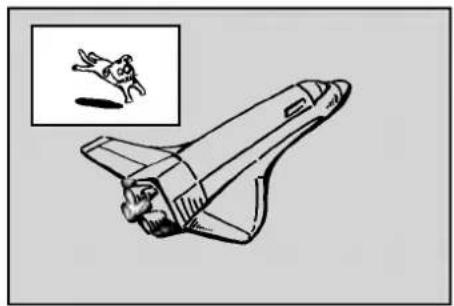
This function enables you to view the stored stations in sub picture during playback.
natural_image
Line drawing of a spacecraft with an inset showing a dynamic human figure (no text or symbols present)On and off
Press PIP to switch on the sub picture, press this button again to switch it off.
Input mode selection for sub picture
Press AV/INPUT to select the input mode for the sub picture. Each time this button is pressed, each input mode for the sub picture is displayed as shown below.
$$ \text { T u n e r } \rightarrow \mathrm{AV1} \rightarrow \mathrm{AV2} \rightarrow \mathrm{AV3} \rightarrow \mathrm{AV4} $$
Program selection for sub picture
Use PR/CH (+/-) to change the program when sub picture's input is set to tuner. The selected program number is displayed on the TV screen. You can view the selected program by pressing STOP (■).
Sub picture position change
Press ◀ / ▶ repeatedly until desired position is achieved. The sub picture moves clockwise or counterclockwise.
Playing a DivX Movie File
The recorder can play DivX files. Before playing DivX files, read "DivX file requirement" on right.
Note:
This recorder cannot play back the DivX file(s) in the Memory Card.
- Press HOME.
- Select [Movie] option.
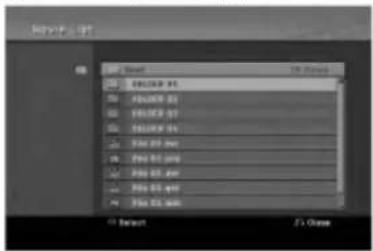
- Select a media that contains DivX file(s) then press ENTER. The [Movie List] menu appears on the TV screen.
text_image
Network 107 File Edit View File Edit (F) File Edit (F) File Edit (F) File Edit (F) File Edit (F) File Edit (F) File Edit (F) File Edit (F) File Edit (F) File Edit (F) File Edit (F) File Edit (F) File Edit (F) File Edit (F) File Edit (F) File Edit (F) File Edit (F) File Edit (E) File Edit (E) File Edit (E) File Edit (E) File Edit (E) File Edit (E) File Edit (E) File Edit (E) File Edit (E) File Edit (E) File Edit (E) File Edit (E) File Edit (E) File Edit (E) File Edit (E) File Edit (E) File Edit (E) File Cut 20000000000000000000000000000000000000000000000000000000000000000000000000000000000000000000000000000 Default 75 Close- Press ▲ / ▼ to select a folder, and press ENTER. A list of files in the folder appears. If you are in a file list and want to return to the Folder list, use the ▲ / ▼ buttons on the remote to highlight 🔒. and press ENTER.
- If you want to view a particular file, press ▲ / ▼ to highlight a file and press PLAY (▶). You can use variable playback functions. Refer to pages 25-28.
- Press STOP to stop the playback. The [Movie List] menu appears.
Notice for displaying the DivX subtitle
If the subtitle does not display properly, please follow the steps below.
- Press PAUSE/STEP when the subtitle appears.
- Press and hold SUBTITLE about 3 seconds. The language code will appear.
- Press ◀ / ▶ to select another language code until the subtitle is displayed properly.
- Press PLAY (▶) to continue playback.
Movie List menu options
- Press ▲ / ▼ to select a folder/file on the [Movie List] menu then press ENTER. [Movie List] menu options appear. The menu options displayed differ depending on the selected media.
- Press ▲ / ▼ / ◀ / ▶ to select an option, and press ENTER.
• [Play] Start playback the selected title.
- [Open] Opens the folder and a list of files in the folder appears
DivX file requirement
Available resolution size: 720x576 (W x H) pixel
DivX file extensions: ".avi", ".divx"
playable DivX subtitle: ".smi", ".srt",
".sub (Micro DVD format only)",
".txt (Micro DVD format only)"
Playable Codec format: "DIV3", "MP43", "DIVX", "XVID", "DX50"
playable Audio format: "AC3", "PCM", "MP2", "MP3", "WMA"
- Sampling frequency: within 8 - 48 kHz (MP3), within 32 - 48kHz (WMA)
- Bit rate: within 8 - 320kbps (MP3), 32 - 192kbps (WMA)
CD-R Format: ISO 9660 and JOLIET.
DVD±R/RW Format: ISO 9660 (UDF Bridge format)
Maximum Files/Disc: Less than 1999 (total number of files and folders)
Notes on DivX format
- If the number of the screen frame is over 29.97 frames per second, this unit may not operate normally.
- If the video and audio structure of recorded file is not interleaved, returns to the menu screen.
- If the file is recorded with GMC, the unit supports only 1-point of the record level.
- GMC? GMC is the acronym for Global Motion Compensation. It is an encoding tool specified in MPEG4 standard. Some MPEG4 encoders, like DivX or Xvid, have this option.
There are different levels of GMC encoding, usually called 1-point, 2-point, or 3-point GMC.
Playing an Audio CD or MP3/WMA file
The recorder can play audio CDs and MP3/WMA files. Before playing MP3/WMA files, read "MP3/WMA audio file requirement" on right.
- Press HOME. The HOME menu appears.
- Select [Music] option.
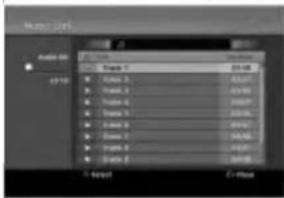
- Select a media that contains MP3/WMA or audio title then press ENTER. The [Music List] menu appears on the TV screen
text_image
Audio Set Audio 00 12/10 Top 1 Top 2 Top 3 Top 4 Top 5 Top 6 Top 7 Top 8 Top 9 Top 10 Top 11 Top 12 Top 13 Top 14 Top 15 Top 16 Top 17 Top 18 Top 19 Top 20 Top 21 Top 22 Top 23 Top 24 Top 25 Top 26 Top 27 Top 28 Top 29 Top 30 Top 31 Top 32 Top 33 Top 34 Top 35 Top 36 Top 37 Top 38 Top 39 Top 40 Top 41 Top 42 Top 43 Top 44 Top 45 Top 46 Top 47 Top 48 Top 49 Top 50 Top 51 Top 52 Top 53 Top 54 Top 55 Top 56 Top 57 Top 58 Top 59 Top 60 Top 61 Top 62 Top 63 Top 64 Top 65 Top 66 Top 67 Top 68 Top 69 Top 70 Top 71 Top 72 Top 73 Top 74 Top 75 Top 76 Top 77 Top 78 Top 79 Top 80 Top 81 Top 82 Top 83 Top 84 Top 85 Top 86 Top 87 Top 88 Top 89 Top 90 Top 91 Top 92 Top 93 Top 94 Top 95 Top 96 Top 97 Top 98 Top 99 Top100
You can use variable playback functions. Refer to pages 25-28.
Tips:
- Press DISPLAY to view ID3-Tag information for the MP3 file. If ID3-Tag information is not present, [ID3-Tag: None] will appear. If you select a folder, the number of subfolders and number of MP3/WMA files in the folder are displayed. Press DISPLAY again to remove the information screen.
-
If you want to move to the upper directory, use the ▲ / ▼ to highlight 📄. and press ENTER.
-
To stop playback at any time, press STOP.
Audio CD and Music List menu options
- Press ▲ / ▼ to select a folder/file on the [Music List] menu then press ENTER.
The menu options appear.
The menu options displayed differ depending on the selected media. - Press ▲ / ▼ / ◀ / ▶ to select an option, and press ENTER.
• [Play] Start playback the selected title.
• [Random] Start or stop random playback. - [Open] Opens the folder and a list of files in the folder appears
- [Delete] Deletes the selected file(s)/folder(s) from the memory card. (page 32)
Random
- Press ▲ / ▼ to select a file then press ENTER. The menu options appear.
- Press ▲ / ▼ to select [Random] option then press ENTER.
The unit automatically begins random playback and "RANDOM" appears on the menu screen. - To return to normal playback, select [Random] option again then press ENTER.
Tip:
By pressing SKIP ▶▶ during Random playback, the unit selects another track and resumes Random playback.
MP3/WMA audio file requirement
File extensions
".mp3", ".wma".
Sampling frequency:
within 8 - 48 kHz (MP3), within 32 - 48kHz (WMA)
Bit rate:
within 8 - 320kbps (MP3), 32 - 192kbps (WMA)
CD-R Format:
ISO 9660 and JOLIET.
DVD±R/RW Format:
ISO 9660 (UDF Bridge format)
Maximum Files/Disc:
Less than 1999 (total number of files and folders)
Viewing a JPEG File
The recorder can play JPEG files. Before playing JPEG recordings, read "Photo file requirement" on right.
- Press HOME.
The HOME menu appears. - Select [Photo] option.
- Select a media that contains JPEG file then press ENTER.
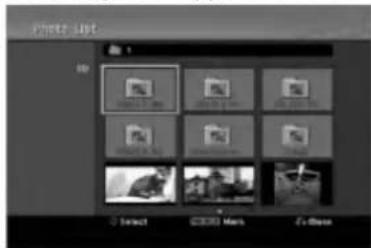
The [Photo List] menu appears on the TV screen.
text_image
Photo List 1 ID Select Mars Ex-Box- Use ◀ / ▶ / ▲ / ▼ to select a file, then press ENTER.
The menu options appear on the left side of the menu.
Tips:
- If you want to move to the upper directory, use the
▲ / ▼ to highlight 📄. and press ENTER.
- You can select all files and folders on the menu by pressing CLEAR button. To cancel the selections, press CLEAR again.
Selecting multiple files
- Press MARKER.
A check mark appears on the file. Press
MARKER again to cancel the marked file.
-
Repeat step 1 to mark additional file.
-
Use ▲ / ▼ to select [Full Screen] then press ENTER.
The selected image is displayed in full screen. Depending upon the size and number of JPEG files, it could take a long time for the recorder to read the files.

natural_image
Close-up of a cat's face and upper torso, no visible text or symbolsPress ENTER to appear or disappear this menu during viewing the full screen.
- To stop viewing at any time, press STOP.
The [Photo List] menu appears.
Tip:
If you press RETURN (♂) while menu screen is displaying, the screen is changed to TV viewing or AV input.
Photo List menu options
- Press ▲ / ▼ to select a file on the [Photo List] menu then press ENTER.
The menu options appear.
The menu options displayed differ depending on the selected media.
-
Use ▲ / ▼ to select an option then press ENTER to confirm your selection.
-
[Open] Opens the folder and a list of files in the folder appears
• [Full Screen] Shows the selected file as full screen.
• [Slide Show] Displays Slide Show menu. - [Delete] Deletes the selected file(s)/folder(s) from the memory card. (page 32)
• [Copy] Copies the file(s) from a disc to a memory card. (page 32)
Skip Images
While viewing a picture, press SKIP (I◄◄ or ►►►) once to advance to the next file or return to the previous file.
Rotate Images
Use ▲ / ▼ while viewing a picture to flip the picture clockwise or counterclockwise.
Photo file requirement
File extensions
.jpg
Photo size:
Less than 4MB recommended
CD-R Format:
ISO 9660 and JOLIET.
DVD±R/RW Format:
ISO 9660 (UDF Bridge format)
Maximum Files/Disc:
Less than 1999 (total number of files and folders)
Notes on JPEG file
Progressive and lossless compression JPEG image files are not supported.
View Slide Shows
-
Select [Slide Show] option on the [Photo List] menu (Refer to "Photo List menu options" on page 31).
-
Press ENTER. The Slide Show menu appears.
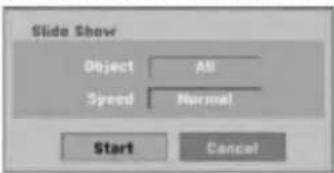
text_image
Slide Show Object All Speed Normal Start Cancel- Use ◀ / ▶ / ▲ / ▼ to set the options.
[Object] option:
- [Selected] Views slide show only selected files. Use the MARKER button to select multiple files.
• [All] Views slide show all files.
[Speed] option: Sets the Slide Show speed to [Slow], [Normal], or [Fast].
- Select the [Start] option then press ENTER to start the Slide Show.
The slide show continues until you press STOP (■).
- Press STOP to stop the Slide Show and returns to the Photo List menu.
To Pause the Slide Show
-
Press PAUSE/STEP (Ⅲ) to pause slide show.
-
When you want to continue slide show, press PLAY (▶).
Erasing a JPEG file(s)/folder(s) from the memory card
- Select a file you wish to erase then press ENTER on the menu.
The menu options appear on the menu.
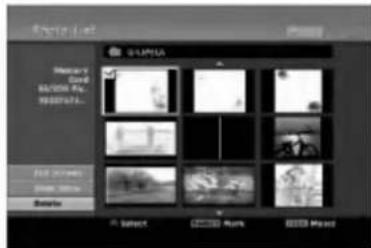
text_image
Digital S-UNILA Memory Core MAYON Rd. INDUSTRIAL... Select Select Main Music- Select [Delete] option then press ENTER.
The confirm message for deleting will appear.
- Use ◀ / ▶ to select [Yes] then press ENTER.
The selected file(s) is deleted.
Copying a JPEG file(s) from a disc to a memory card
-
Select a file you wish to copy on the menu.
-
Press ENTER. The menu options appear on the menu.
-
Select [Copy] option then press ENTER. Copy menu appears.
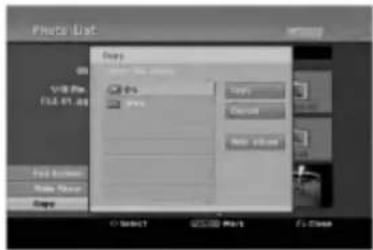
text_image
Photo Dst. File Name V10 Pro FSL 81.00 Size Add Add Add Add OK Cancel Add Options C:\SELECT Add Add Add-
Select a memory card slot 1 or 2, if required.
-
You can select a album (folder) to copy.
-
After selecting a media then press ENTER. The album (folder) list appears.
-
Select a folder. Also, you can create new album (folder). Select [New Album] option on the Copy menu then press ENTER. "NONAME###" folder is created.
-
Select [Copy] option then press ENTER to begin copying.
Tip to select a file(s) or folder(s)
You can select all files and folders on the menu by pressing CLEAR button. To cancel the selections, press CLEAR again.
Selecting multiple files (folders)
-
Press MARKER. A check mark appears on the file or folder. Press MARKER again to cancel the marked file or folder.
-
Repeat step 1 to mark additional file (folders).
Recording
About DVD recording
Notes:
- This recorder cannot make recordings on CD-R or CD-RW discs.
- Our company takes no responsibility for recording failure due to power outages, defective discs, or damage to the Recorder.
- Fingerprints and small scratches on a disc can affect playback and/or recording performance. Please take proper care of your discs.
Disc types and recording formats, modes, and settings
This recorder can play five different kinds of DVD discs: pre-recorded DVD-Video discs, DVD-RW, DVD-R, DVD-RAM, DVD+RW and DVD+R discs. The disc format for DVD-R, DVD+R, DVD+RW discs is always "Video format"—the same as pre-recorded DVD-Video discs. This means that once finalized, you can play a DVD-R, DVD+R, or DVD+RW in a regular DVD player. The DVD-RAM disc format is Video Recording (VR) format.
By default, the DVD-RW disc format is Video format, though you can change this to Video Recording (VR) format, if required. (Reinitializing the disc will erase the contents of the disc.)
The recording mode is closely related to the disc format. If the disc format is Video Recording format, then the recording mode is VR mode; if the disc format is Video mode, then the recording mode is Video mode (except for DVD-Video, which is not recordable, and so does not have a recording mode). Within the recording modes (which are fixed for them whole disc) are the record settings. These can be changed as required for each recording and determine the picture quality and how much space the recording will take up on the disc.
Notes for recording
- The recording times shown are not exact because the recorder uses variable bit-rate video compression. This means that the exact recording time will depend on the material being recorded.
- When recording a TV broadcast, if the reception is poor or the picture contains interference, the recording times may be shorter.
- If you record still pictures or audio only, the recording time may be longer.
- The displayed times for recording and time remaining may not always add up to exactly the length of the disc.
- The recording time available may decrease if you heavily edit a disc.
- If using a DVD-RW disc, make sure you change the recording format (Video mode or VR mode) before you record anything on the disc. See page 22 (Initialize) for how to do this.
- When using a DVD-R or DVD+R disc, you can keep recording until the disc is full, or until you finalize the disc. Before you start a recording session, check the amount of recording time left on the disc.
- When using a DVD-RW disc in Video mode, recording time available will only increase if you erase the last title recorded on the disc.
- The Delete Title option in the Title List (Original) menu only hides the title, it does not actually erase the title from the disc and increase the recording time available (except for the last recorded title on a DVD-RW disc in Video mode).
• Overwrite recording is available using DVD+RW discs. - When using a DVD+R/RW, the recorder will execute the Menu-making operation to update the new title and editing when removing the disc from the recorder or turn off the recorder.
Recording time and picture quality
There are four preset recording quality modes:
- XP – Highest quality setting, gives about 1 hour of recording time on a DVD (4.7GB).
- SP – Default quality, sufficient for most applications, gives about 2 hours of recording time on a DVD (4.7GB).
- LP – Slightly lower video quality, gives about 4 hour of recording time on a DVD disc (4.7GB).
- EP – Lowest video quality, gives about 6 hour of recording time on a DVD (4.7GB).
You may see a fragmented picture during playing back the contents recorded in EP mode.
Restrictions on copying
Some video material is copy-once protected: If you want to record copy-once protected material to DVD, you must use a VR mode DVD-RW disc compatible with CPRM Ver. 1.1.
You can identify copy-once protected material during playback by displaying disc information on-screen.
- NTSC format signals from the analog or the DV inputs is not recorded correctly with this recorder.
- Video signals in SECAM format (from the built-in TV tuner or from the analog inputs) are recorded in PAL format.
- Video that is 'copy-once only' can only be recorded using DVD-RW disc in VR mode or DVD-RAM disc with CPRM (see below).
What is 'CPRM'?
CPRM is a copy protection system (with scramble system) only allowing the recording of 'copy once' broadcast programs. CPRM stands for Content Protection for Recordable Media.
This Recorder is CPRM compatible, which means that you can record copy-once broadcast programs, but you cannot then make a copy of those recordings. CPRM recordings can only be made on DVD-RW discs formatted in VR mode or DVD-RAM discs, and CPRM recordings can only be played on players that are specifically compatible with CPRM.
Copyright
- Recording equipment should be used only for lawful copying and you are advised to check carefully what is lawful copying in the area in which you are making a copy. Copying of copyright material such as films or music is unlawful unless permitted by a legal exception or consented to by the rights owner.
- This product incorporates copyright protection technology that is protected by method claims of certain U.S. patents and other intellectual property rights owned by Macrovision Corporation and other rights owners. Use of this copyright protection technology must be authorized by Macrovision Corporation, and is intended for home and other limited viewing uses only, unless otherwise authorized by Macrovision corporation. Reverse engineering or disassembly is prohibited.
- CONSUMERS SHOULD NOTE THAT NOT ALL HIGH DEFINITION TELEVISION SETS ARE FULLY COMPATIBLE WITH THIS PRODUCT AND MAY CAUSE ARTIFACTS TO BE DISPLAYED IN THE PICTURE. IN CASE OF 625 PROGRESSIVE SCAN PICTURE PROBLEMS, IT IS RECOMMENDED THAT THE USER SWITCH THE CONNECTION TO THE 'STANDARD DEFINITION' OUTPUT. IF THERE ARE QUESTIONS REGARDING OUR TV SET COMPATIBILITY WITH THIS MODEL 625p DVD RECORDER, PLEASE CONTACT OUR CUSTOMER SERVICE CENTER.
Basic Recording from a TV
Follow the instructions below to record a TV program. Recording starts immediately and continues until the disc is full or you stop the recording.
Note:
You must load a recordable disc for DVD recording.
- Set a recording mode as necessary by pressing REC MODE repeatedly. (XP, SP, LP, EP)
- Use PR/CH (+/-) buttons to select the TV channel to record.
Changing TV Audio Channel
You can select the audio channel (language) to listen by pressing AUDIO during viewing TV program. The current audio channel is displayed on-screen.
Stereo broadcast:
Stereo → Left → Right
Bilingual broadcast:
Main → Sub → Main+Sub
- If the sound is of poor quality when set to Stereo, you can often improve it by changing to Mono (Left or Right).
-
This recorder can record either NICAM or regular audio. If the NICAM setting (page 18) is set to Auto, then if the broadcast is NICAM, the audio automatically changes to NICAM and you can record the NICAM audio. If the broadcast is non-NICAM, the regular audio is always recorded. If NICAM sound distortion occurs, due to poor reception, you can switch off NICAM setting of the program.
-
Press REC (●) once.
Recording will start. (The REC indicator lights in the display window.)
- Recording continues until you press STOP (■) or the disc is full.
-
To record for a fixed length of time, see Instant Timer Recording on right.
-
Press STOP (■) to stop recording.
To Pause the Recording
- Press PAUSE/STEP (Ⅲ) to pause recording.
- When you want to continue recording, press PAUSE/STEP (III).
To record one TV program while watching another
- Press TV/DVD to select the TV mode during recording. The TV indicator appears.
- Using the TV, select the channel to be viewed.
Instant Timer Recording
Instant Timer Recording allows you to make a recording easily of a preset length without using the program timer.
- Follow steps 1-2 as shown left (Basic Recording from a TV).
- Press REC (●) repeatedly to select the recording time length.
Recording starts after the first press. Each subsequent press increases the recording time within free space.
The recording time is displayed on the TV screen. At the end of the recording, the recorder will stop recording and shut off.
Checking the Recording Time
Press REC (●) once to check the recording time. The recalled setting will automatically return to the TV screen for a moment.
Also, remaining time of recording is shown in the display window.
To Extend the Recording Time
The recording time can be extended anytime by pressing REC (●).
Each subsequent press increases the recording time within free space.
Caution
If the recorder is unplugged (or there is a power failure) while the recorder is recording, the recording will be lost.
Playing while you are recording RAM
You can start play from the beginning of the title while continuing to record it.
-
Press PLAY (▶) while recording.
Start play of the title you are recording. -
Press STOP (■) to return to the current recording screen.
or
-
Press TIMESHIFT while recording.
The PIP(Picture-In-Picture) window appears on the screen. What is currently being recorded appears as a PIP and you will hear the playback audio. You can change the main and sub picture by pressing TIMESHIFT. -
Press STOP (■) to return to the current recording screen.
Notes:
- Play cannot be started until at least 30 seconds after recording starts.
• This function is not available during timer recording
Timer Recording
This recorder can be programmed to record up to 16 programs within a period of 1 month. For unattended recording, the timer needs to know the channels to be recorded, the starting and ending time.
Note:
If you use a completely blank disc for timer recording, you must format the disc before starting timer recording. (Refer to "Initialize" on page 22.)
-
Press HOME and select [TV] option.
-
Press ▲ / ▼ to select [Timer Record] option then press ENTER.
The [Timer Record] list will appear.
- Press ▲ / ▼ to select [New] option then press ENTER.
The [Timer Record] menu will appear.

text_image
Timer Record 0 min Time F5 Date Start Time End Time Mode VPS 02 21/06 Wed 6:28 6:50 SP OFF Off OK < Clear- [PR] Choose a memorized program number, or one of the external inputs from which to record. (You cannot select DV input.)
- [Date] Choose a date up to 1 month in advance or desired repeat (Monday \~ Friday, or Every Sun\~Sat).
• [Start Time] Set the start time.
• [End Time] Set the end time.
- [Mode] Choose a record mode (XP, SP, LP, EP, or AT).
AT (Auto) mode determines how much disc time is available and switches record mode, if necessary, to complete recording the program.
Note :
When you set the VPS/PDC option to On, AT mode is not available.
- [VPS/PDC] The VPS/PDC system automatically adjusts the recording time so that even if a program is not running to schedule, you won't miss it. For VPS/PDC to work properly, you must input the correct announced time and date of the program you want to record.
Note that VPS/PDC may not work with every station.
Notes:
- Stations that use VPS/PDC typically include VPS/PDC information in the teletext TV guide pages. Please refer to these pages when setting a timer recording.
- When using VPS/PDC, there may be instances where the beginning of the program is not recorded.
- Enter the necessary information for your timer recording(s).
- ◀ / ▶ (left/right) – move the cursor left/right
- ▲ / ▼ (up/down) – change the setting at the current cursor position
- Press RETURN (♂) to return to the [Timer Record] list.
- Press ENTER, the program will be memorized by the recorder.
To check the programming, the [Timer Record] list will appear.
[Check] field's [Rec. OK] on the [Timer Record] list indicates that the timer recording is programmed correctly.
-
Press RETURN (♂) to exit the [Timer Record] list.
-
Make sure that you load a recordable disc for DVD recording and press POWER to switch your unit to Standby.
Notes:
- The timer indicator lights in the display window when the recorder is in standby with the timer active. (Nothing is displayed while the [Power Save Mode] is ON.)
- You must press POWER to stop the timer recording.
Checking Timer Recording Details
Programming can be checked whenever the recorder is turned on.
-
Press HOME and select [TV] option.
-
Press ▲ / ▼ to select [Timer Record] option then press ENTER.
The [Timer Record] list will appear.
- Use ▲ / ▼ to select a timer recording.
- Press ENTER to edit the selected program. Timer Record menu appears.
- Press CLEAR to delete the selected program from the Timer Record List.
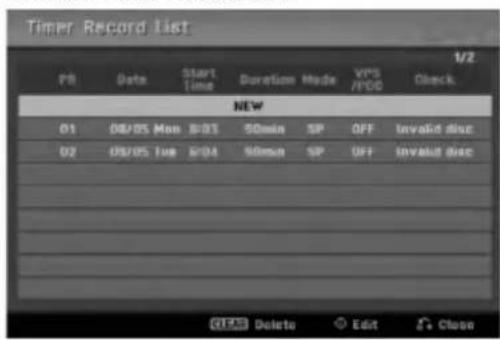
text_image
Timer Record List PB Date START Time Duration Mode VPS /1/00 Check NEW 01 08/05 Mon 8/03 50min SP OFF Invalid disc 02 08/05 Tue 8/04 60min SP OFF Invalid disc QPS Delete Edit CloseCanceling a Timer Recording
You can clear a timer setting anytime before the recording actually starts.
- Use ▲ / ▼ to select a program you want to erase on the Timer Recorder List. If you want to erase the program, press CLEAR.
Stopping a Timer Recording in Progress
After a timer recording has started, you can still cancel the program.
- Press POWER.
Timer Recording Troubleshooting
Even though the timer is set, the recorder will not record when:
• There is no disc loaded.
• A non-recordable disc is loaded.
- [Disc Protect] option is set to [ON] in the Setup menu. (see page 23).
• Power is turned on.
- There are already 99 titles (DVD-RW, DVD-R, DVD-RAM), 49 titles (DVD+R, DVD+RW) recorded on the disc.
You cannot enter a timer program when:
• A recording is already underway.
- The time you're trying to set has already passed.
• There are already 16 timer programs set.
If two or more timer programs overlap:
• The earlier program takes priority.
- When the earlier program finishes, the later program starts.
- If two programs are set to start at exactly the same time, the program entered first takes priority.
If the disc is damaged, the recording may not complete successfully. In this case even though the Check field shows "Rec. OK", it may not be.
Recording from an External Input
Recording from External Components
You can record from an external component, such as a camcorder or VCR, connected to any of the recorder's external inputs.
- Make sure that the component you want to record from is connected properly to the recorder. See page 14-15.
-
Press AV/INPUT repeatedly to select the external input to record from.
-
Tuner: Built-in tuner
• AV1: EURO AV1 AUDIO VIDEO mounted on back panel - AV2: EURO A/V2 DECODER mounted on back panel
• AV3: AV IN 3 mounted on back panel -
AV4: AV IN 4 (VIDEO, AUDIO (L/R), S-VIDEO IN) mounted on front panel
• DV: DV IN mounted on front panel -
Select the recording mode as necessary by pressing REC MODE repeatedly. (XP, SP, LP, or EP)
- Press REC (●) once.
Recording will start. (The REC indicator lights in the display window.)
- Recording continues until you press STOP (■) or the disc is full.
-
To record for a fixed length of time, see "Instant Timer Recording" on page 35.
-
Press STOP (■) to stop recording.
Note:
If your source is copy-protected using CopyGuard, you will not be able to record it using this recorder. See Copyright on page 34 for more details.
Recording from DV Input
Before DV dubbing
You can connect a DV-equipped camcorder to this recorder using a single DV cable for input and output of audio, video, data and control signals.
- This recorder is only compatible with DV-format (DVC-SD, DV25) camcorders. Digital satellite tuners and Digital VHS video recorders are not compatible.
- You cannot connect more than one DV camcorder at a time to this recorder.
- You cannot control this recorder from external equipment connected via the DV IN jack (including two recorders).
- It may not always be possible to control the connected camcorder via the DV IN jack.
- Digital camcorders can usually record audio as stereo 16-bit/48kHz, or twin stereo tracks of 12-bit/32kHz. This recorder can only record one stereo audio track. Set [DV Rec Audio] option to [Audio 1] or [Audio 2] as required (see page 21).
- Audio input to the DV IN jack should be 32 or 48kHz (not 44.1kHz).
- Picture disturbance on the recording may occur if the source component pauses playback or plays an unrecorded section of tape, or if the power fails in the source component, or the DV cable becomes disconnected.
Recording from a Digital Camcorder
You can record from a digital camcorder connected to the DV IN jack on the front panel of this recorder.
Using the recorder's remote, you can control both the camcorder and this recorder.
Before recording, make sure that the audio input for the DV IN jack is set up (see page 21).
Tips:
- The source signal must be DVC-SD format.
- Some camcorders cannot be controlled using this recorder's remote.
- If you connect a second recorder using a DV cable, you cannot control the second DVD from this one.
- You cannot control this unit remotely from a component connected to the DV IN jack.
-
You cannot record date and time information from a DV cassette.
-
Make sure your digital camcorder is connected to the front panel DV IN jack. See page 15.
-
Check that the DV audio input is as you require. You can choose between Audio 1 (original audio) and Audio 2 (overdubbed audio).
- DV Input is set from the [DV Rec Audio] in sub-menu of the Setup menu. See "DV Recording Audio" on page 21 for more information.
-
Press AV/INPUT repeatedly to select the DV input. DV appears in the display window and on the TV screen.
-
Find the place on the camcorder tape that you want to the recording to start from. For best results, pause playback at the point from which you want to record.
- Depending on your camcorder, you can use this recorder's remote to control the camcorder using the STOP, PLAY and PAUSE functions.
- Press REC (●) once to start recording.
- Recording is automatically stopped if the recorder detects no signal.
- You can pause or stop the recording by pressing PAUSE/STEP (■) or STOP (■). You cannot control the camcorder from this remote control during recording.
- In Video mode, the final frame of the recording may remain displayed on screen for a while after recording stops.
Troubleshooting
If you cannot get a picture and/or audio through the DV IN jack, check the bullet points:
- Make sure the DV cable is properly connected.
- Try switching off the connected equipment then switch back on.
- Try switching the audio input.
Note:
Depending on the connected camcorder, you may not be able to control it using the remote control supplied with this recorder.
Editing
Title List and Chapter List Menu Overview
Using the Title List menu you can edit video content. The editing features available in the Title List menu depend on whether you are editing video on DVD, and whether you're editing Original content, or a Playlist.
There are two ways to edit VR mode DVD-RW discs. You can directly edit the Original content of the disc, or you can create and edit a Playlist. The Playlist doesn't actually change any of the content on the disc, but just controls how the content is played back.
-
Press MENU/LIST to display the Title List menu. Playback should be stopped when you do this.
-
You can also access it using HOME menu, select [Movie] option then select [DISC] option and press ENTER.
- When selecting titles, use the ▲ / ▼ buttons to display the previous/next page if there are more than six titles.
- If you are editing a VR mode disc, press MENU/LIST to switch between Original and Playlist menu.
On the left side of the screen are the menu options. The main part of the screen shows thumbnails of the titles (or chapter) on the DVD. You can change these thumbnails using the THUMBNAIL button—see Changing Title Thumbnails on page 40.
Press DISPLAY to display the information of selected title on the Title List menu.
After selecting a title or chapter on the Title List or Chapter List menu, then press ENTER. The menu options appears on the left side of the menu. Use
▲ / ▼ to select a option then press ENTER to confirm your selection.
- To exit the Title List menu, press RETURN (💡) repeatedly.

text_image
1 2 3 4 5 6 TITLE LIST Original 1/3 DVD-VR Thouse SSmin Free TITLE 1 03/05 0:00:43 TITLE 2 03/05 0:01:10 TITLE 3 03/05 0:06:23 Play Search Delete Protect Edit PlayList Add Select Info Playlist Close- Menu options: To display menu option, select a title or chapter then press ENTER. The options displayed differ depending on the disc type.
• [Combine] Combines two chapters into one (page 44).
- [Delete] Deletes the title or chapter. (page 42)
- [Delete Part] Deletes a part of the Title (page 42).
• [Divide] Divides a title into two (page 44).
• [Full Play] Starts playback of the selected title including the hidden chapters.
- [Hide (Show)] Hides (or Shows) the selected title or chapter. (page 45)
- [Move] Moves a chapter on the Chapter List-Playlist menu to a position on the menu. (page 45)
- [Play] Start playback of the selected title or chapter. The hidden titles and chapters on the DVD+R/RW cannot be play back.
- [Playlist Add] Adds the title or chapter to the Playlist. (page 41)
• [Protect] Protects accidental recording, editing or deleting of the title. (page 45)
• [Title Name] Edits the title name. (page 43)
- [Search]
- [Chapter]; Displays Chapter List of the Title. - [Time]; Search time for you want start point of the title. (page 43)
• [Title] Displays Title List of the chapter.
- Indicates the disc name, record mode, free space, and elapsed time progress bar.
- Currently selected title.
- Thumbnail
- Shows the selected title number and total number of titles.
- Shows the title name, recorded date, and recording length.
VR Mode: Original and Playlist Editing
Titles, Chapters and Parts
Titles in the disc's original content contain one or more chapters. When you insert a disc's title into the Playlist, all the chapters within that title also appear. In other words, chapters in the Playlist behave exactly as chapters on a DVD-Video disc do. Parts are sections of Original or Playlist titles. From the Original and Playlist menu you can add or delete parts. Adding a chapter or title to the Playlist creates a new title made up of a section (ie., chapter) of an Original title. Deleting a part removes part of a title from the Original or Playlist menu.
Caution
- When editing using the Delete, Add and Move functions, the start and end frames may not be exactly as set in the start and end point display.
- During Playlist playback, you may notice a momentary pause between edits. This is not a malfunction.
Is editing a DVD like editing a video tape?
No. When you edit a video tape you need one video deck to play the original tape and another to record the edits. With DVD, you edit by making a 'Playlist' of what to play and when to play it. On playback, the Recorder plays the disc according to the Playlist.
About word 'Original' and 'Playlist'
-RWvr RAM
Throughout this manual, you will often see the words Original and Playlist to refer to the actual content and the edited version.
- Original: content refers to what's actually recorded on the disc.
- Playlist: content refers to the edited version of the disc — how the Original content is to be played.
Adding Chapter Markers

You can create chapters within a title by inserting chapter marks at the desired points.
Note:
Chapter markers are inserted at regular intervals automatically. You can change this interval from the Initial Setup menu (see "Auto Chapter" on page 21).
During recording or playing back, at the point you want to start a new chapter, press CHP ADD. A chapter marker icon appears on the TV screen.
Changing Title Thumbnails

Each title displayed in the Title List menu is represented by a thumbnail picture taken from the start of that title or chapter.
If you prefer, select a different still picture from within a title.
Press THUMBNAIL to make the currently displayed picture the one that appears in the Title List menu. The still picture that you choose appears in both the Original or Playlist menu.
Tip:
You can also change the thumbnail picture of the title on the Chapter List menu. Select a chapter on the Chapter List menu then press THUMBNAIL. The thumbnail picture of the title that includes the chapter is changed.
Making a New Playlist
-RWvr RAM
Use this function to add an Original title or chapter to the Playlist. When you do this, the whole title is put into the Playlist (you can delete bits you don't need later — see Deleting an Original or Playlist title/chapter on page 42).
The title appears in the Playlist complete with the chapter markers that appear in the Original. However, if you add more chapter markers to the Original later, these are not automatically copied over into the Playlist title.
You can add up to 999 chapters to one disc. If you only want to add a chapter of a title, use the Adding a title/chapter to the Playlist on this page.
- Choose a title or chapter on the Title List-Original menu or Chapter List-Original menu to put into the Playlist, then press ENTER. The menu options appears on the left side of the menu.

text_image
WILE 1 01-05 WILE 2 01-06 WILE 3 01-07 Select OK/OK Info. ADD/FLAMID F1 Close- Use ▲ / ▼ to select [Playlist Add] option then press ENTER.

text_image
VISA 4 Search Video Photo Play Search Audio Playbox Playbox Arm TITLE 5 TITLE 6 TITLE 7 Select & Playbox New Playbox Select 确定 取消 Played Show- Select [New Playlist] then press ENTER. The new title appears in the updated Playlist. All chapters of the title are added to the Playlist.
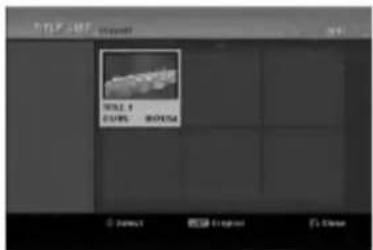
text_image
文件名: 0124 文件类型: 文件类型 0124 0124 0124 0124 0124 0124 0124 0124 0124 0124 0124 0124 0124 0124 0124 0124 0124 0124 0124 0124 0123 0123 0123 0123 0123 0123 0123 0123 0123 0123 0123 0123 0123 0123 0123 0123 0123 0123 0123 0123 0126 0126 0126 0126 0126 0126 0126 0126 0126 0126 0126 0126 0126 0126 0126 0126 0126 0126 0126 0126 0127 0127 0127 0127 0127 0127 0127 0127 0127 0127 0127 0127 0127 0127 0127 0127 0127 0127 0127 0127 0128 0128 0128 0128 0128 0128 0128 0128 0128 0128 0128 0128 0128 0128 0128 0128 0128 0128 0128 0128 0129 0129 0129 0129 0129 0129 0129 0129 0129 0129 0129 0129 0129 0129 0135Adding Additional Title/Chapters to the Playlist -RWvr RAM
You can add an Original title or chapter to add to a Playlist title even if it is already registered.
- Choose a title or chapter on the Title List-Original menu or Chapter List-Original menu to put into the Playlist, then press ENTER. The menu options appears on the left side of the screen.

text_image
DVD-50 Movie Clips True Play Search Details Preview Add Preview Jam WILE 1 WILE 2 Glened WILE 3 Glened WILE 4 Select Edit Playset Close-
Choose a Title List-Playlist that is already registered to insert a title or chapter, then press ENTER.
-
Repeat steps 1-3 to add additional title or chapter on the Playlist. You can view the added chapters on the Chapter List-Playlist menu.

text_image
Chapter List Volume 1 NOTE 1 NUMBER NAME DETAILS 0 reset NOTE Project 5x case- Press RETURN (♂) to exit, or MENU/LIST to go back to the Title List-Original menu.
Deleting an Original or Playlist Title/Chapter
When you erase a title or chapter from the Playlist menu, you only remove it from the Playlist; the title/chapter remains in the Original menu.
If you choose to delete a title or chapter from the Original (title/chapter) menu, the title or chapter is actually deleted from the disc and the remaining time available for recording increases. Titles/chapters deleted from the Original are also removed from the Playlist.
Note:
It may not be possible to delete chapters that are less than 5 seconds long.
-
Use ◀/▶/▲/▼ to choose a chapter or title you want to delete on the Title List or Chapter List menu then press ENTER. The menu options appears on the left side of the screen.
-
Select [Delete] option from the options on the menu.

text_image
TITLE 1.001 DOCK-ON Show Struts Free File Save As Delete Present Add Preview Add WILE 1 50/96 WILE 2 50/96 WILE 3 50/96 0:00:00 0:00:00 0:00:00 0:00:00 Play Save As Delete Present Add Preview Add- Press ENTER to confirm.
The confirm message for deleting will appear.
- Use ◀ / ▶ to select [Yes] then press ENTER.
The selected chapter or title is deleted.
After pressing ENTER, the new, updated menu is displayed.
-
Repeat steps 1 - 4 to continue to delete from the menu.
-
Press RETURN (💡) repeatedly to exit the menu.
Notes:
- When DVD+RW recording, the deleted title's name is changed to 'Deleted Title'.
- If more than two titles are repeatedly deleted, the titles are combined into one.
- When you are deleting a title or chapter, only the last one on DVD+RW increases remaining recording time.
Deleting a Part -RWvr RAM
You can delete a part which you do not want in the title.
- Use ◀/▶/▲/▼ to choose a title you want to delete on the Title List menu then press ENTER. The options appears on the left side of the menu.
- Select [Delete Part] option then press ENTER. Edit (Delete Part) menu appears on the TV screen. [Start Point] icon is highlighted.

text_image
Play a Select the Start Point Start Point 0.015 P 0.015 P 0.015 P 0.015 P 0.015 P 0.015 P 0.015 P 0.015 P 0.015 P 0.015 P 0.015 P 0.015 P 0.015 P 0.015 P 0.015 P Start End 0.015 P 0.015 P 0.015 P 0.015 P 0.015 P 0.015 P 0.015 P 0.015 P 0.015 P 0.015 P 0.015 P 0.015 P 0.015 P 0.015 P Senset ▶ 23 # 49 Heavy Point T: Close- Starts playback and use pause step, search and slow-motion to find the starting point.
- Press ENTER at the starting point of the section you want to delete. 'End Point' icon is highlighted. The part is indicated on the Progress Bar.
- Use pause step, search and slow-motion to find the ending point.
- Press ENTER at the ending point of the section you want to delete. You can cancel the selected point, use ▲ / ▼ to select [Cancel] icon then press ENTER.
- If you finish to edit, select [Done] icon then press ENTER. The confirm message for deleting will appear. Use ◀ / ▶ to select [Yes] then press ENTER. The selected part is deleted from the title and Title List menu appears.
Note:
It may not be possible to delete parts that are less than 3 seconds long.
Naming a Title
You can name Original and Playlist titles independently. Names can be up to 32 characters long.
-
Choose the title you want to name on the Title List menu, then press ENTER. The menu options appears on the left side of the menu.
-
Use ▲/▼ to select [Title Name] option then press ENTER. Keyboard menu appears.
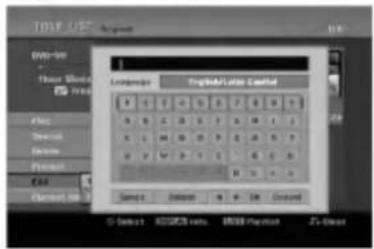
text_image
1017 / 12 Design Customs None Show Show Show Show Show Show Show Show Show Show Show Show Show Show Show Show Show Show Show Show Show Show Show Show Show Show Show Show Show Show Show Show Show Show Show Show Show Show Show Show Show Show Show Show Show Show Show Show Show Show Senset... Delete... Add... Close... Select... 80%0000000000000000000000000000000000000000000000000000000000000000000000000000000000000000000000000000-
Enter a name for the title. Use ◀/▶/▲/▼ to select a character then press ENTER to confirm your selection.
-
Use MENU/LIST button to change keyboard type.
- OK: Select to finish.
- Cancel: Cancels all entered characters.
• Space: Inserts a space at the cursor position. - Delete: Deletes the previous character at the cursor position.
• ◀ / ▶: Moves cursor to left or right.
Tip:
Remote control buttons for entering a name PLAY (▶): Inserts a space at the cursor position.
II (PAUSE/STEP): Deletes the after character at the cursor position.
■ (STOP), CLEAR: Deletes the previous character at the cursor position.
|◀◀ / ▶▶▶: Moves cursor to left or right.
Numbers (0-9): Enters the corresponding character at the cursor position.
- Choose OK then press ENTER to fix the name and return to the previous menu screen.
- Press RETURN (💡) repeatedly to exit the menu.
Notes:
- Names can be up to 32 characters long.
- For discs formatted on a different recorder, you will see only a limited character set.
- When recording on DVD-R, DVD+R or DVD+RW discs, the entered name is displayed on the DVD player only after finalization.
Time Search

You can select start point of the title.
- Use ◀ / ▶ / ▲ / ▼ to choose a title on the Title List menu then press ENTER. The options appear on the left side of the menu.
- Select [Time] option then press ENTER. [Search] menu appears on the TV screen.
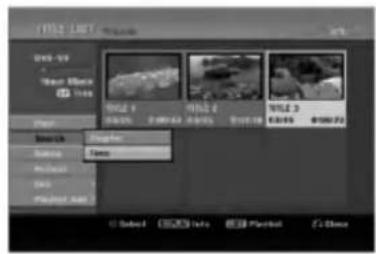
text_image
1932 LIST Movie View 50 Show Share Share Share Share Share Share Share Share Share Share Share Share Share Share Share Share Share Share Share Share Share Share Share Share Share Share Share Share Share Share Share Share Share Share Share Share Share Share Share Share Share Share Share Share Share Share Share Share Share Share Spread Spread Spread Spread Spread Spread Spread Spread Spread Spread Spread Spread Spread Spread Spread Spread Spread Spread Spread Spread Spread Spread Spread Spread Spread Spread Spread Spread Spread Spread Spread Spread Spread Spread Spread Spread Spread Spread Spread Spread Spread Spread Spread Spread Spread Spread Spread Spread Spread Spread Sparet
text_image
Current picture End time Start time Selected time Selected point- Use ◀ / ▶ to find the point you want to start. The point increase 1 minute step. If you press and hold ◀ / ▶ then the point increase 5 minute step.
- Press ENTER to start selected point.
Divide One Titles Into Two
+RW
Use this command to split a title up into two new titles.
-
On the Title List menu, select a title you want to divide then press ENTER. The menu options appears on the left side of the screen.
-
Select [Divide] option.
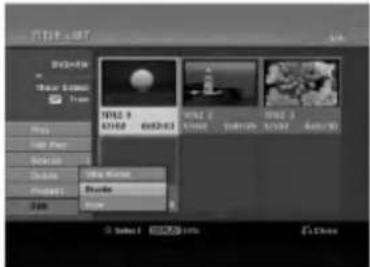
text_image
Video Image Scene Team Title 9 A2107 B2345 Title 2 A1867 B2107 Title 3 A1707 B2107 Title 1 Add Image Delete Delete Image Delete Image Select 1 确定 10%- Press ENTER.
Edit (Divide) menu appears. [Divide] option is highlighted.

text_image
Current picture The first title's thumbnail The second title's thumbnail- Use play, pause step, search and slow-motion to find the point you want to divide the title.
- Select [Divide] option then press ENTER at the point.
To reset the point, select [Cancel] option then press ENTER. Repeat from step 3. - Choose [Done] option then press ENTER to fix the dividing point.
The title is divided into two new titles. It take up to 4 minutes to divide.
Note:
You cannot select dividing point less than 3 seconds.
Combining Two Chapters Into
One -RWvr +RW +R RAM
Use this function to combine two adjacent Playlist or Original chapters into one.
Note:
This function is not available if there is only one chapter within the title.
- On the Chapter List menu, select the second chapter of the two chapters you want to combine then press ENTER The menu options appears on the left side of the screen.
- Use ▲ / ▼ to select [Combine] option. The combine indicator appears between the two chapters you want to combine.
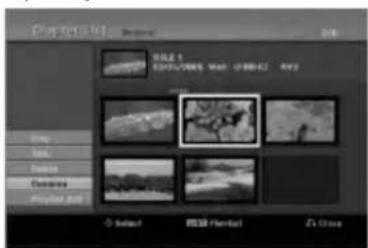
text_image
Chapter 10 - Session TITLE 1 EXTRA:#EWS MAX: O-BHK2 AWS View Add Remove Preview Preview Edit Select Filter Select- Press ENTER.
Moving a Playlist Chapter
-RWvr RAM
Use this function to re-arrange the playing order of Playlist chapters on the Title List-Playlist menu.
Note:
This function is not available if there is only one chapter.
- Select a chapter on the Chapter List-Playlist menu.
- Press ENTER.
The menu options appears on the left side of the menu. - Use ▲ / ▼ to select [Move] option from Playlist options then press ENTER.

text_image
Photo Edit View File 1 2015/2016 Wed 2016 Play Labs Hours Mount Locking Select Image Tools- Use ◀/▶/▲/▼ to choose the place you want to move the chapter to then press ENTER. After pressing ENTER, the updated menu is displayed.
Hide a Chapter/Title +RW +R
You can skip playing chapters or titles without deleting from the disc.
-
Use ▲▼◀▶ to choose a chapter or title you want to hide on the Title List or Chapter List menu, then press ENTER.
Options appear on the left side of the screen. -
Select [Hide] option.
Example: Title List (DVD+RW)
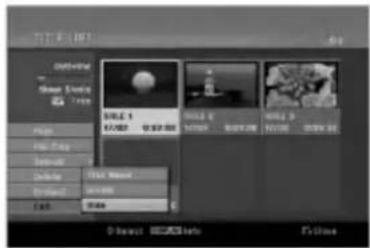
text_image
C:\Users\Media\Photo 7.000 Single 1 6/1/2023 Video 1 6/1/2023 Video 2 6/1/2023 Video 3 6/1/2023 Video 4 6/1/2023 Video 5 6/1/2023 Video 6 6/1/2023 Video 7 6/1/2023 Video 8 6/1/2023 Video 9 6/1/2023 Video 10 6/1/2023 Video 11 6/1/2023 Video 12 6/1/2023 Video 13 6/1/2023 Video 14 6/1/2023 Video 15 6/1/2023 Video 16 6/1/2023 Video 17 6/1/2023 Video 18 6/1/2023 Video 19 6/1/2023 Video 20 6/1/2023 Video 21 6/1/2023 Video 22 6/1/2023 Video 23 6/1/2023 Video 24 6/1/2023 Video 25 6/1/2023 Video 26 6/1/2023 Video 27 6/1/2023 Video 28 6/1/2023 Video 29 6/1/2023 Video 30 6/1/2023 Video 31 6/1/2023 Video 32 6/1/2023 Video 33 6/1/2023 Video 34 6/1/2023 Video 35 6/1/2023 Video 36 6/1/2023 Video 37 6/1/2023 Video 38 6/1/2023 Video 39 6/1/2023 Video 40 6/1/2023 Video 41 6/1/2023 Video 42 6/1/2023 Video 43 6/1/2023 Video 44 6/1/2023 Video 45 6/1/2023 Video 46 6/1/2023 Video 47 6/1/2023 Video 48 6/1/2023 Video 49 6/1/2023 Video 50 6/1/2023- Press ENTER to confirm.
The chapter's or title's thumbnail will dim.
Tip
If you select a hidden chapter or title on the Title List or Chapter List menu, you can 'show' it by choosing [Show] option on the menu. After doing that, you are able to see the chapter or title.
Protect a Title
+RW +R -RWvm RAM
Use this function to protect against accidental recording, editing or deleting of the title.
- Press MENU/LIST to display the Title List menu.
-
Use ▲▼◀▶ to choose a title you want to protect then press ENTER.
Options appear on the left side of the screen. -
Select [Protect] from the options.

text_image
TIF-3.167 Original 2000-95 Three Weeks 52 fps Flu: Blu: 4 E: 0.5 B: 0.3 Blu: 2 E: 0.8 Blu: 3 E: 1.0 Blu: 4 Blu: 5 Blu: 6 Blu: 7 Blu: 8 Blu: 9 Blu: 10 Blu: 11 Blu: 12 Blu: 13 Blu: 14 Blu: 15 Blu: 16 Blu: 17 Blu: 18 Blu: 19 Blu: 20 Blu: 21 Blu: 22 Blu: 23 Blu: 24 Blu: 25 Blu: 26 Blu: 27 Blu: 28 Blu: 29 Blu: 30 Blu: 31 Blu: 32 Blu: 33 Blu: 34 Blu: 35 Blu: 36 Blu: 37 Blu: 38 Blu: 39 Blu: 40 Blu: 41 Blu: 42 Blu: 43 Blu: 44 Blu: 45 Blu: 46 Blu: 47 Blu: 48 Blu: 49 Blu: 50 Blu: 51 Blu: 52 Blu: 53 Blu: 54 Blu: 55 Blu: 56 Blu: 57 Blu: 58 Blu: 59 Blu: 60 Blu: 61 Blu: 62 Blu: 63 Blu: 64 Blu: 65 Blu: 66 Blu: 67 Blu: 68 Blu: 69 Blu: 70 Blu: 71 Blu: 72 Blu: 73 Blu: 74 Blu: 75 Blu: 76 Blu: 77 Blu: 78 Blu: 79 Blu: 80 Blu: 81 Blu: 82 Blu: 83 Blu: 84 Blu: 85 Blu: 86 Blu: 87 Blu: 88 Blu: 89 Blu: 90 Blu: 91 Blu: 92 Blu: 93 Blu: 94 Blu: 95 Blu: 96 Blu: 97 Blu: 98 Blu: 99 Blu: 100- Press ENTER to confirm.
The lock mark will appears on the title's thumbnail.
Tip
If you select a title that has already been protected on the Title List menu, you can 'unprotect' it by choosing [Protect] option from the Title List menu options. After doing that, you can edit and delete the title.
Reference
Additional Information
Overwriting Recording +RW
To overwrite a new video recording on a previously recorded title, follow these steps. This feature is not available for DVD+Rs, that always record at the end of the Disc.
- Select input source you want to record (TV channel, AV1-4, DV).
- Press MENU/LIST to display the Title List menu.

text_image
TIME 1 TIME 2 TIME 3 County Time 0:00:00 0:00:00 Follow- Use ▲▼◀▶ to choose a title you want to overwrite.
- Press REC (●) to start overwrite recording. Overwrite recording starts from the start point of the title.
- Press STOP (■) to stop the overwrite recording. The new title is created and updated menu is displayed.
Notes:
• This function is not available for a protected title.
- If the overwrite is longer than the recording length of the current title, the next title is overwritten. But if next title is protected, the overwriting stops at the starting point of the title.
- If the selected title's recording length is less than 10 seconds, the next title is overwritten. But if the next title is protected, overwriting stops.
Viewing Title List menu displayed on other DVD Recorders or Players
+RW +R
You can view the Title List menu displayed on the other DVD player that is capable of playing DVD+RW or DVD+R discs.
-
Insert DVD+R or DVD+RW disc recorded already.
-
Press TITLE in play or stop mode. Title List menu will appear as shown below.
Tip You can remove the Title List menu by pressing STOP (■).
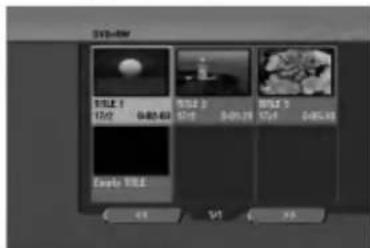
text_image
STYLE 1 17:02 04:50:40 STYLE 2 6:19 04:51:29 STYLE 3 17:4 04:51:30 Early STYLE OK 5/1 2/8- To play back a title, select the title you want then press ENTER or PLAY (▶).
Playing Your Recordings on Other DVD Players (Finalizing a Disc)
Most regular DVD players can play finalized discs recorded in Video mode, finalized DVD+R or DVD+RWs. A small number of players can also play DVD-RW discs recorded in VR mode, finalized or not. Check the manual that came with the other player to check what formats of discs it will play.
Finalizing 'fixes' the recordings and editings in place so that the disc can be played on a regular DVD player or computer equipped with a suitable DVD-ROM drive.
Finalizing a Video mode disc creates a menu screen for navigating the disc. The menu can be accessed by pressing MENU/LIST or TITLE.
To finalize a disc, refer to "Finalize" on page 22.
Notes:
- Unfinalized DVD+RW is playable on regular DVD players.
- The edited contents of a DVD+RW disc is compatible on regular DVD players only after finalization.
- Any edited contents of the DVD+R disc are not compatible on regular DVD players. (Hide, chapter combine, added chapter mark, etc.)
- How long finalization takes depends on the type of disc, how much is recorded on the disc, and the number of titles on the disc.
- DVD+R DL disc can take up to 30 minutes to finalize.
Language Codes
Use this list to input your desired language for the following initial settings:
Disc Audio, Disc Subtitle, Disc Menu.
| Language | Code | Language | Code | Language | Code | Language | Code |
| Abkhazian | 6566 | Fiji | 7074 | Lingala | 7678 | Singhalese | 8373 |
| Afar | 6565 | Finnish | 7073 | Lithuanian | 7684 | Slovak | 8375 |
| Afrikaans | 6570 | French | 7082 | Macedonian | 7775 | Slovenian | 8376 |
| Albanian | 8381 | Frisian | 7089 | Malagasy | 7771 | Somali | 8379 |
| Ameharic | 6577 | Galician | 7176 | Malay | 7783 | Spanish | 6983 |
| Arabic | 6582 | Georgian | 7565 | Malayalam | 7776 | Sudanese | 8385 |
| Armenian | 7289 | German | 6869 | Maltese | 7784 | Swahili | 8387 |
| Assamese | 6583 | Greek | 6976 | Maori | 7773 | Swedish | 8386 |
| Aymara | 6588 | Greenlandic | 7576 | Marathi | 7782 | Tagalog | 8476 |
| Azerbaijani | 6590 | Guarani | 7178 | Moldavian | 7779 | Tajik | 8471 |
| Bashkir | 6665 | Gujarati | 7185 | Mongolian | 7778 | Tamil | 8465 |
| Basque | 6985 | Hausa | 7265 | Nauru | 7865 | Tatar | 8484 |
| Bengali; Bangla | 6678 | Hebrew | 7387 | Nepali | 7869 | Telugu | 8469 |
| Bhutani | 6890 | Hindi | 7273 | Norwegian | 7879 | Thai | 8472 |
| Bihari | 6672 | Hungarian | 7285 | Oriya | 7982 | Tibetan | 6679 |
| Breton | 6682 | Icelandic | 7383 | Panjabi | 8065 | Tigrinya | 8473 |
| Bulgarian | 6671 | Indonesian | 7378 | Pashto, Pushto | 8083 | Tonga | 8479 |
| Burmese | 7789 | Interlingua | 7365 | Persian | 7065 | Turkish | 8482 |
| Byelorussian | 6669 | Irish | 7165 | Polish | 8076 | Turkmen | 8475 |
| Cambodian | 7577 | Italian | 7384 | Portuguese | 8084 | Twi | 8487 |
| Catalan | 6765 | Japanese | 7465 | Quechua | 8185 | Ukrainian | 8575 |
| Chinese | 9072 | Javanese | 7487 | Rhaeto-Romance | 8277 | Urdu | 8582 |
| Corsican | 6779 | Kannada | 7578 | Rumanian | 8279 | Uzbek | 8590 |
| Croatian | 7282 | Kashmiri | 7583 | Russian | 8285 | Vietnamese | 8673 |
| Czech | 6783 | Kazakh | 7575 | Samoan | 8377 | Volapük | 8679 |
| Danish | 6865 | Kirghiz | 7589 | Sanskrit | 8365 | Welsh | 6789 |
| Dutch | 7876 | Korean | 7579 | Scots Gaelic | 7168 | Wolof | 8779 |
| English | 6978 | Kurdish | 7585 | Serbian | 8382 | Xhosa | 8872 |
| Esperanto | 6979 | Laothian | 7679 | Serbo-Croatian | 8372 | Yiddish | 7473 |
| Estonian | 6984 | Latin | 7665 | Shona | 8378 | Yoruba | 8979 |
| Faroese | 7079 | Latvian, Lettish | 7686 | Sindhi | 8368 | Zulu | 9085 |
Area Codes
Choose an area code from this list.
| Area | Code | Area | Code | Area | Code | Area | Code |
| Afghanistan | AF | Ethiopia | ET | Malaysia | MY | Saudi Arabia | SA |
| Argentina | AR | Fiji | FJ | Maldives | MV | Senegal | SN |
| Australia | AU | Finland | FI | Mexico | MX | Singapore | SG |
| Austria | AT | France | FR | Monaco | MC | Slovak Republic | SK |
| Belgium | BE | Germany | DE | Mongolia | MN | Slovenia | SI |
| Bhutan | BT | Great Britain | GB | Morocco | MA | South Africa | ZA |
| Bolivia | BO | Greece | GR | Nepal | NP | South Korea | KR |
| Brazil | BR | Greenland | GL | Netherlands | NL | Spain | ES |
| Cambodia | KH | Heard and McDonald Islands | HM | Netherlands Antilles | AN | Sri Lanka | LK |
| Canada | CA | Hungary | HU | New Zealand | NZ | Sweden | SE |
| Chile | CL | India | IN | Nigeria | NG | Switzerland | CH |
| China | CN | Indonesia | ID | Norway | NO | Thailand | TH |
| Colombia | CO | Israel | IL | Oman | OM | Turkey | TR |
| Congo | CG | Italy | IT | Pakistan | PK | Uganda | UG |
| Costa Rica | CR | Jamaica | JM | Panama | PA | Ukraine | UA |
| Croatia | HR | Japan | JP | Paraguay | PY | United States | US |
| Czech Republic | CZ | Kenya | KE | Philippines | PH | Uruguay | UY |
| Denmark | DK | Kuwait | KW | Poland | PL | Uzbekistan | UZ |
| Ecuador | EC | Libya | LY | Portugal | PT | Vietnam | VN |
| Egypt | EG | Luxembourg | LU | Romania | RO | Zimbabwe | ZW |
| El Salvador | SV | Russian Federation | RU |
Controlling Your TV with the Supplied Remote Control
You can control the sound level, input source, and power switch of your LG TV with the supplied remote.
You can control your TV using the buttons below.

text_image
TV POWER OPEN/ CLOSE TVND AVINPUT AVINPUT 1 2 3 4 5 6 7 8 9 ISDP MUTE SCAN SKIP PAUSE/STEP PLAY STOP TIME PRVCH MENUUST ENTER TV Control Buttons| By pressing | You can |
| POWER | Turn the TV on or off. |
| AV/INPUT | Switch the TV's input source between the TV and other input sources. |
| PR/CH +/- | Scans up or down through memorized channels. |
| VOL +/- | Adjust the volume of the TV. |
| MUTE | Temporarily turns TV sound OFF, press again to restore. |
Controlling other TVs with the remote
You can control the sound level, input source, and power switch of non-LG TVs as well. If your TV is listed in the table below, set the appropriate manufacturer code.
-
While holding down TV POWER button, press the number buttons to select the manufacturer code for your TV (see the table below).
-
Release TV POWER button.
Code numbers of controllable TVs
If more than one code number is listed, try entering them one at a time until you find the one that works with your TV.
| Manufacturer | Code Number |
| LG / GoldStar | 1 (Default), 2 |
| Zenith | 1, 3, 4 |
| Samsung | 6, 7 |
| Sony | 8, 9 |
| Hitachi | 4 |
Notes:
- Depending on your TV, some or all buttons may not function on the TV, even after entering the correct manufacturer code.
- If you enter a new code number, the code number previously entered will be erased.
- When you replace the batteries of the remote, the code number you have set may be reset to the default setting. Set the appropriate code number again.
Troubleshooting
Check the following guide for the possible cause of a problem before contacting service.
| Symptom | Cause | Solution |
| No power. | The power cord is disconnected. | Plug the power cord into the wall outlet securely. |
| No picture. | TV/DVD mode for the recorder is set to TV. | Press TV/DVD on the remote control repeatedly to choose DVD mode. TV indicator disappears in the display window. |
| The TV is not set to receive recorder signal output. | Select the appropriate video input mode on the TV so the picture from the recorder appears on the TV screen. | |
| The video cable is not connected securely. | Connect the video cable securely. | |
| The connected TV power is turned off. | Turn on the TV. | |
| No sound. | The equipment connected with the audio cable is not set to receive recorder signal output. | Select the correct input mode on the audio receiver so you can listen to the sound from the recorder. |
| The audio cables are not connected securely. | Connect the audio cable securely. | |
| The power of the equipment connected with the audio cable is turned off. | Turn on the equipment connected with the audio cable. | |
| The audio connecting cord is damaged. | Replace it with new one. | |
| The playback picture is poor. | The disc is dirty. | Clean the disc. |
| The recorder does not start playback. | No disc is inserted. | Insert a disc. (Check that the disc indicator in the display window is lit.) |
| An unplayable disc is inserted. | Insert a playable disc. (Check the disc type, color system, and regional code.) | |
| The disc is placed upside down. | Place the disc with the playback side down. | |
| The disc is not placed within the guide. | Place the disc on the disc tray correctly inside the guide. | |
| The disc is dirty. | Clean the disc. | |
| The Rating level is set. | Cancel the Rating function or change the rating level. | |
| The picture from the external input is distorted | The video signal from the external component is copy-protected. | You cannot connect via this recorder. Connect the component directly to your TV. |
| Some channels are skipped over when using PR/CH (+/-). | Those channels are not stored in the recorder. | Restore channels. See “Program Edit” on page 18. |
| The picture or sound of broadcasting channel is weak or missing. | Aerial or cables are loose. | Tighten connections or replace cable. |
| Camcorder image is not shown. | Camcorder is off. | Turn camcorder on and operate properly. |
| Camcorder image via A/V input or DV IN to recorder is not shown on TV screen. | The recorder's source is incorrect. | Use AV/INPUT to select input channel (AV1, AV2, DV, etc.) |
| Cannot play a disc recorded using this recorder on another player. | The disc was recorded in Video mode. | Finalize the disc. (page 22) |
| Some players will not play even a finalized disc recorded in Video mode. | No solution. | |
| The disc was recorded in VR mode, | The other player must be RW compatible in order to play it. | |
| Discs recorded with copy-once material cannot be played on other players. | No solution. | |
| Cannot record or did not record successfully. | The remaining blank space on the disc is insufficient. | Use another disc. |
| The source you are trying to record is copy protected. | You cannot record the source. | |
| When setting the recording channel, the channel is tuned on the TV's own tuner. | Select the channel on the recorder's built-in TV tuner. | |
| When recording to a Video mode disc, programs that are copy-once protected cannot be recorded. | Use a VR mode formatted disc for copy-once material. | |
| Timer recording is not possible. | Clock in recorder is not set to correct time. | Set clock to correct time. See "Auto Clock Set" or "Manual Clock Set" on page 18. |
| Timer has been programmed incorrectly. | Reprogram Timer. See "Timer Recording" on page 36. | |
| Timer record indicator light does not appear after programming timer. | Reprogram Timer. | |
| Stereo Audio Record and/or Playback is not present. | TV is not Stereo-compatible. | No solution. |
| Broadcast program is not in stereo format. | No solution. | |
| The recorder A/V Out jacks are not connected to TV A/V In jacks. | Make A/V connections. Stereo is available only via A/V output from the recorder. | |
| The recorder Audio/Video Out is not selected for viewing at the TV. | Select AUX or A/V source as TV input. | |
| The recorder's TV audio channel is set to mono. | Set TV audio channel mode to Stereo. See "Changing TV audio channel" on page 35. | |
| The remote control does not work properly. | The remote control is not pointed at the remote sensor of the recorder. | Point the remote control at the remote sensor of the recorder. |
| The remote control is too far from the recorder. | Operate the remote control within 7 m. | |
| There is an obstacle in the path of the remote control and the recorder. | Remove the obstacle. | |
| The batteries in the remote control are exhausted. | Replace the batteries with new ones. |
Resetting the recorder
If you observe any of the following symptoms...
- The unit is plugged in, but the power will not turn on or off.
- The front panel display is not working.
• The recorder is not operating normally.
...you can reset the recorder as follows:
- Press and hold the POWER button for at least five seconds. This will force the unit to power off then turn the unit back on.
- Unplug the power cord, wait at least five seconds, and then plug it in again.
Specifications
General
| Power requirements | AC 200-240V, 50/60 Hz |
| Power consumption | 22W |
| Dimensions (approx.) | 430 X 54 X 275 mm (w x h x d) without foot |
| Mass (approx.) | 4.1 kg |
| Operating temperature | 5°C to 35°C |
| Operating humidity | 5 % to 90 % |
| Television system | PAL I, B/G, I/I, SECAM D/K, K1 color system |
| Recording format | PAL |
Recording
| Recording format | DVD Video Recording, DVD-VIDEO |
| Recordable media | DVD-ReWritable, DVD-Recordable, DVD+ReWritable, DVD+Recordable, DVD+Recordable (Double Layer), DVD-RAM |
| Recordable time | DVD (4.7GB): Approx. 1 hour (XP mode), 2 hours (SP mode), 4 hours (LP mode), 6 hours (EP mode) DVD+R DL (8.5GB): Approx. 2 hour (XP mode), 3 hours 40 minutes (SP mode), 7 hours 10 minutes (LP mode), 11 hours (EP mode) |
| Video recording format | |
| Sampling frequency | 27MHz |
| Compression format | MPEG 2 (VBR support) |
| Audio recording format | |
| Sampling frequency | 48kHz |
| Compression format | Dolby Digital |
Playback
| Frequency response | DVD (PCM 48 kHz): 8 Hz to 22 kHz, CD: 8 Hz to 20 kHz |
| DVD (PCM 96 kHz): 8 Hz to 44 kHz | |
| Signal-to-noise ratio | More than 100 dB (AUDIO OUT connector) |
| Harmonic distortion | Less than 0.008% (AUDIO OUT connector) |
| Dynamic range | More than 95 dB (AUDIO OUT connector) |
Inputs
| AERIAL IN | Aerial input, 75 ohms |
| VIDEO IN | 1.0 Vp-p 75 ohms, sync negative, RCA jack x 2 / SCART x 2 |
| AUDIO IN | 2.0 Vrms more than 47 kohms, RCA jack (L, R) x 2 / SCART x 2 |
| S-VIDEO IN | (Y) 1.0 V (p-p), 75 Ω, sync negative, Mini DIN 4-pin x 1(C) 0.3 V (p-p) 75 Ω |
| DV IN | 4 pin (IEEE 1394 standard) |
Outputs
| VIDEO OUT | 1 Vp-p 75 Ω, sync negative, RCA jack x 1 / SCART x 2 |
| S-VIDEO OUT | (Y) 1.0 V (p-p), 75 Ω, sync negative, Mini DIN 4-pin x 1(C) 0.3 V (p-p) 75 Ω |
| COMPONENT VIDEO OUT | (Y) 1.0 V (p-p), 75 Ω, sync negative, RCA jack x 1(Pb)/(Pr) 0.7 V (p-p), 75 Ω, RCA jack x 2 |
| HDMI video/audio output | 19 pin (HDMI standard, Type A) |
| Audio output (digital audio) | 0.5 V (p-p), 75 Ω, RCA jack x 1 |
| Audio output (optical audio) | 3 V (p-p), Optical connector x 1 |
| Audio output (analog audio) | 2.0 Vrms (1 KHz, 0 dB), 600 Ω, RCA jack (L, R) x 1 / SCART x 2 |
Accessory:
| Scart cable | 1 | Video cable | 1 |
| Audio cable (L, R) | 1 | RF Coaxial Cable | 1 |
| Remote control | 1 | Batteries | 2 |
- Design and specifications are subject to change without notice.
P/NO:3834RD0099X